Emulating Game Boy games on Panic’s Playdate handheld has been a thing for a while now, thanks to releases like PlayGB that are easily sideloaded. While it was thought for some time that full-speed GB emulation on the Playdate was impossible with only a handful of games hitting their native speeds, a new emulator, CrankBoy, was recently released, and so far, it’s proving everyone wrong.
Based on PlayGB, CrankBoy aims to offer “stable, full-speed Game Boy emulation,” which certainly piqued my curiosity to see how true this is. With a new CrankBoy release, v1.1.0, bringing more game compatibility and performance improvements, I just had to take it for a spin. Here’s what I discovered.
CrankBoy isn’t just a Game Boy emulator; you can actually play GB games with the Playdate’s crank
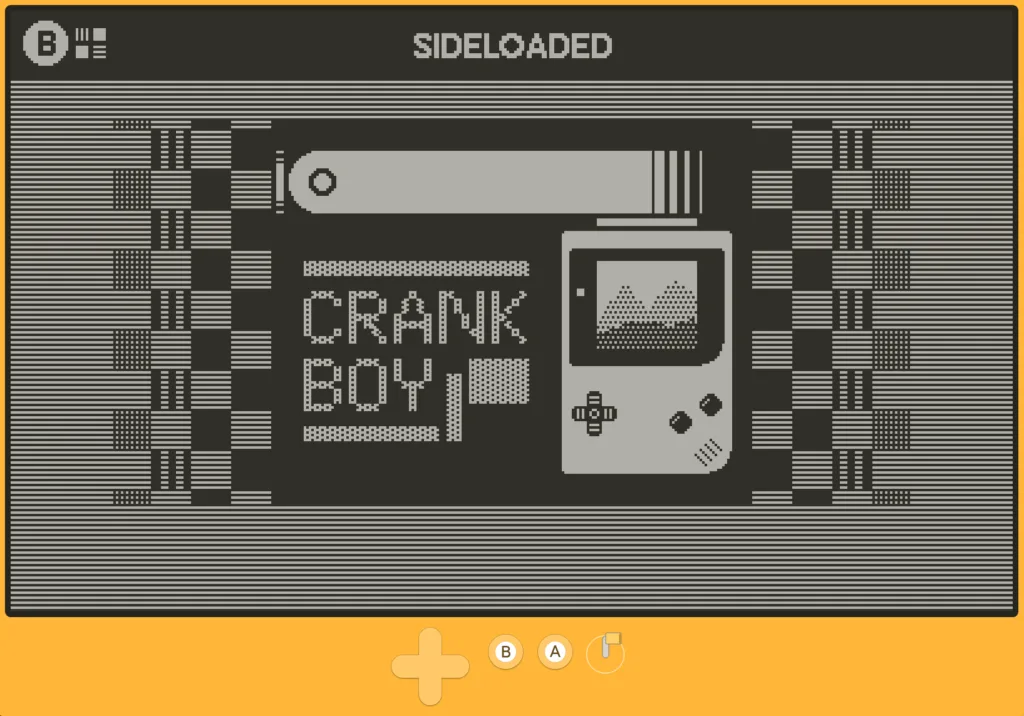
Screenshot of CrankBoy launcher in Sideloaded menu
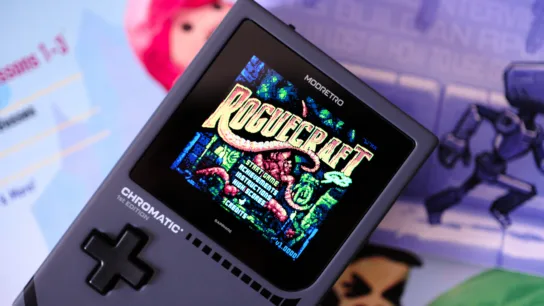
I have to admit, at first, the thought of playing Game Boy games on the Playdate didn’t really blow my skirt up, as I expected the hardware to not be powerful enough for reliable emulation. Plus, I already own a million ways to play Game Boy games, including multiple Modretro Chromatics and Analogue Pockets, so I saw no reason to test PlayGB over the last three years of its existence. But last month, I caught wind of CrankBoy, which sounded pretty unique in that it can use the Playdate’s physical crank to help control GB games. But it wasn’t until version v1.1.0 dropped this week that I finally decided to give CrankBoy a go, and boy am I glad I did.
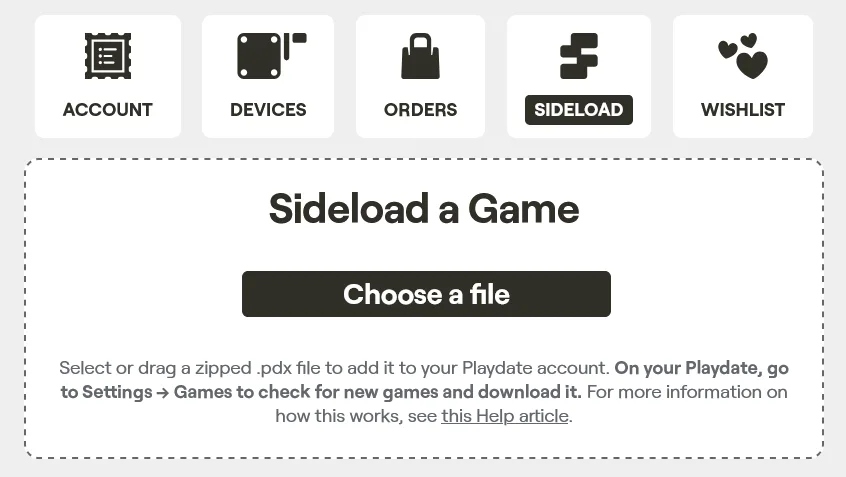
Sideloading on the Playdate is as easy as navigating to your account settings
You won’t find CrankBoy on the Playdate store; you’ll have to sideload the app, and thankfully, Panic has made this very easy with a sideload option built into the website. Simply grab the app from GitHub, and then upload the zip file in the sideload option built into your Playdate account. From here, you turn on your Playdate and jump to the Game Library on your device, click on Sideloaded, and then select CrankBoy to install.
You’ll also need to sideload some Game Boy Games
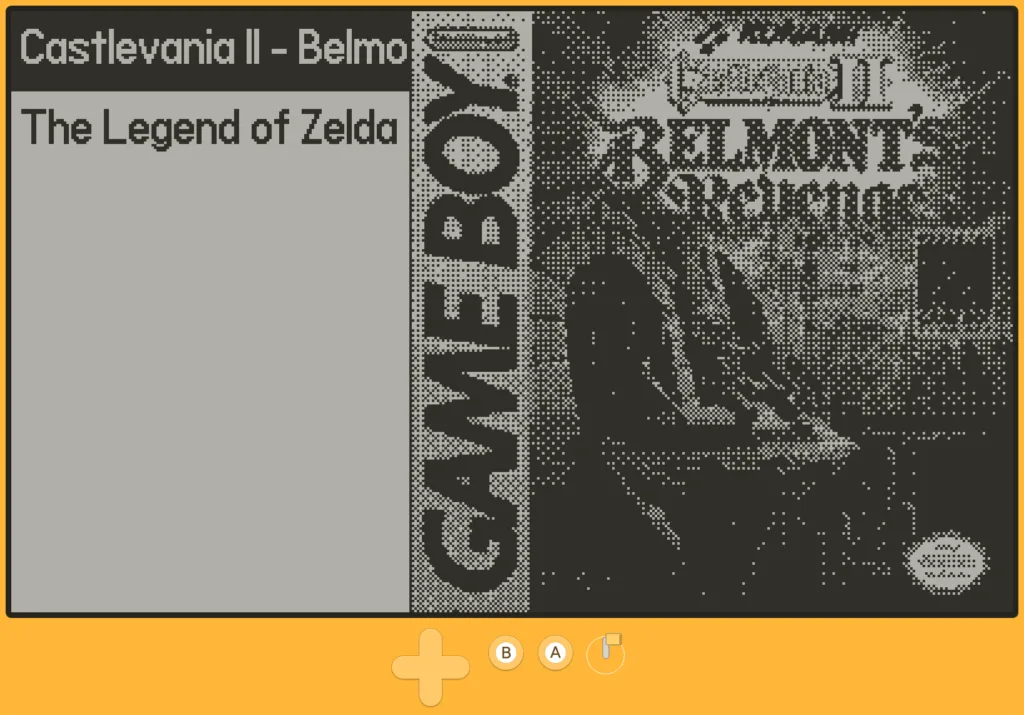
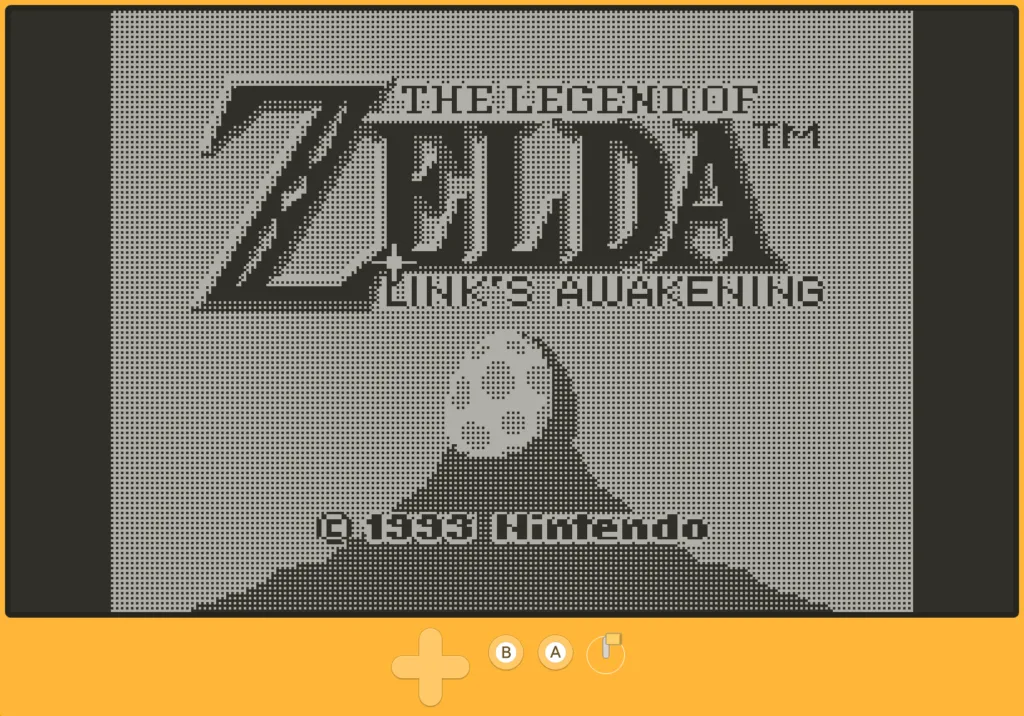
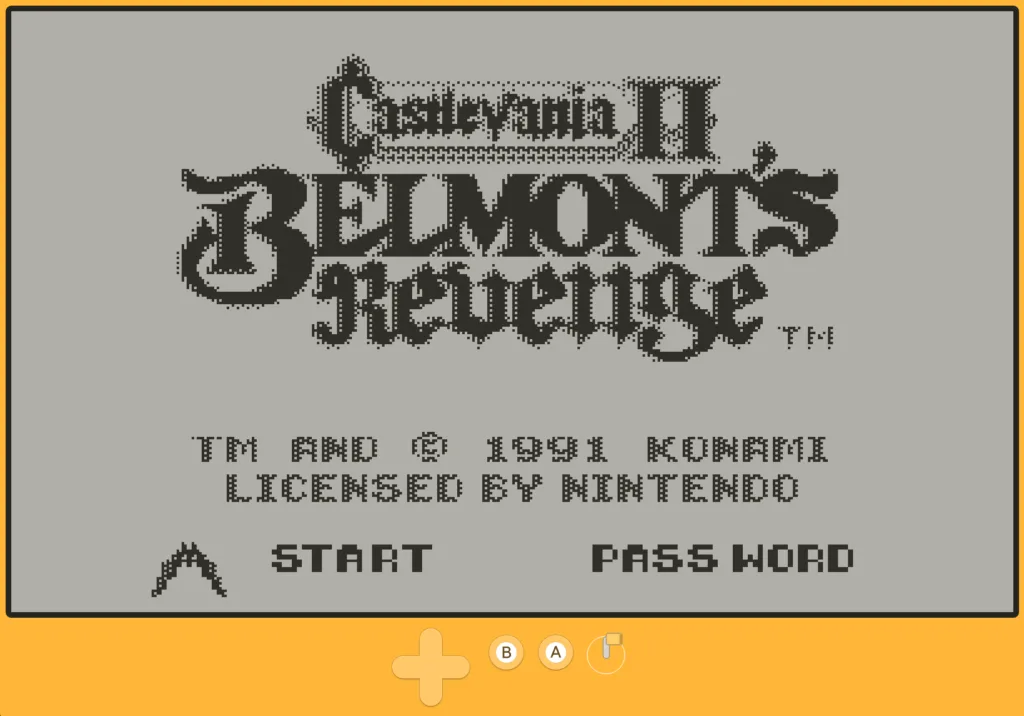
Screenshots of Zelda and Castlevania games in CrankBoy menu
Once CrankBoy is installed on your device, you’ll need to add some ROMs so you can emulate them. While I won’t get into the specifics of how to obtain your ROMs, there are plenty of tools that make it easy to rip your games from physical carts. Unlike sideloading apps and games on the Playdate, you’ll have to force the device into Data Disk Mode.
Plug the Playdate into your PC via USB, then hold down the left d-pad button, the power button, and the menu button at the same time for 5 seconds. You should see the device boot into Data Disk Mode. Or you can simply navigate to Settings > System > Reboot to Data Disk, whichever you find easier. Once your Playdate is seen as a folder on your PC, drag and drop your GB ROMs into the /Shared/Emulation/gb/games/ folder.
CrankBoy takes GB emulation to the next level on Playdate
CrankBoy playing Zelda and Castlevania with crank controls (the slowdowns in Castlevania are caused by the Mirror app recording)
I chose to start with The Legend of Zelda: Link’s Awakening, and since Panic offers the Mirror app for PC, macOS, and Linux, I went ahead and recorded my gameplay so you can see the emulator in action. As you can see, it works a treat, retaining the crank actions of PlayGB for start and select. The thing is, you can also download patches straight from romhacking.net into the emulator, while also dialing in a host of settings to ensure optimal performance and controls. Talk about robust.
What’s also incredibly cool is that you can add your Game Boy ROMs to the main Playdate menu with the rest of your Playdate games, with no need to dip into the CrankBoy emulator just to launch your favorite ROMs. Heck, you could even develop your own Game Boy game, add it to CrankBoy, and then add the shortcut to the ROM to the Playdate’s main screen as if it were a native Playdate game. That’s an incredibly cool feature.
But it’s still a work in progress
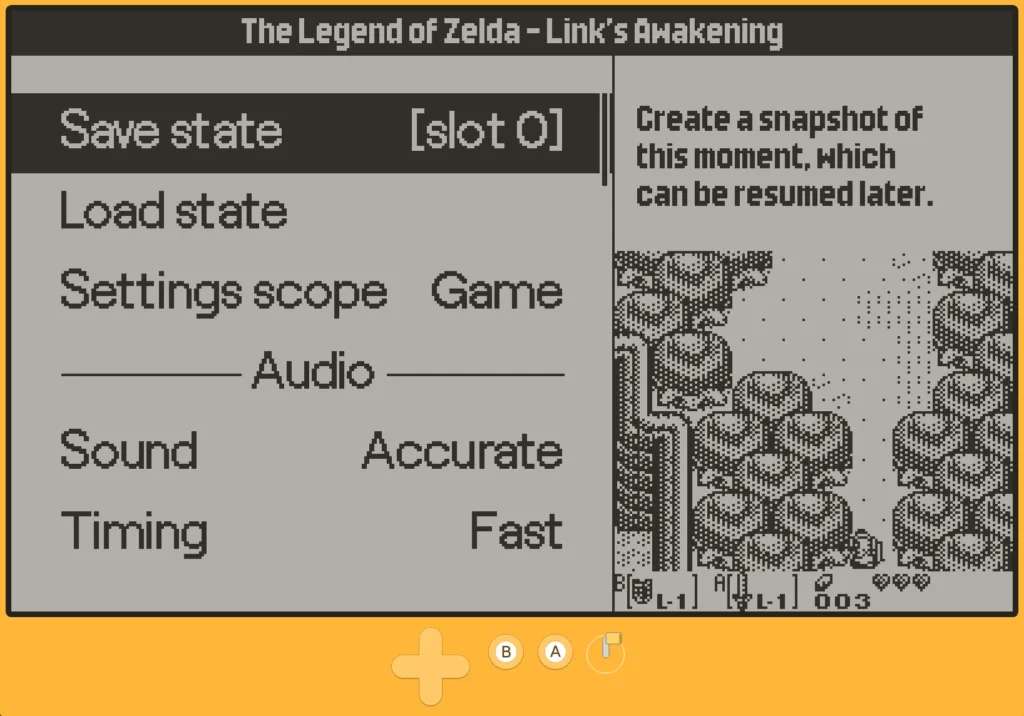
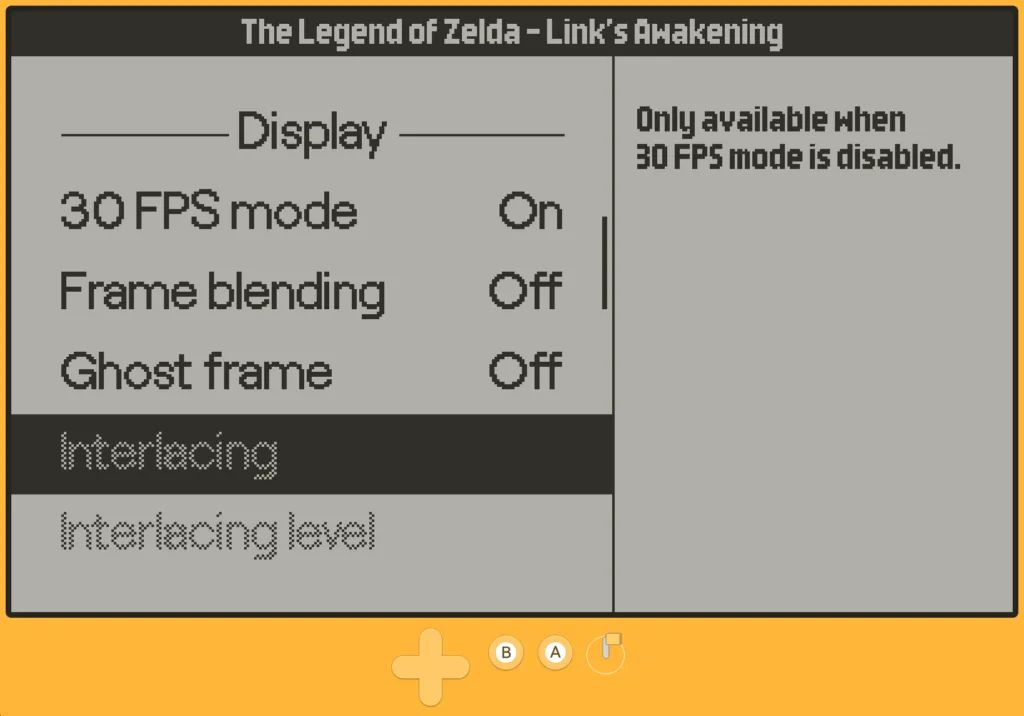
CrankBoy settings for save states and display
Now, there are caveats. The vast majority of Game Boy Color games won’t work with the emulator, though further support is being worked on. It’s also worth keeping in mind that not every GB game will work correctly, but the good news is that you have plenty of options at your disposal to ensure each game plays the best it can. This is why the emulator is set to 30FPS support out of the box, though titles that don’t contain a scrolling background can hit 60FPS native, so it’s a bit of a mixed bag as far as 60FPS support goes, but overall, playing at 30 Hz is proving to work out just fine. It’s also worth noting that audio support is not accurate to sub-frame precision, so audio clips may be missing in a few games.
CrankBoy is a great way to play Game Boy games on the go
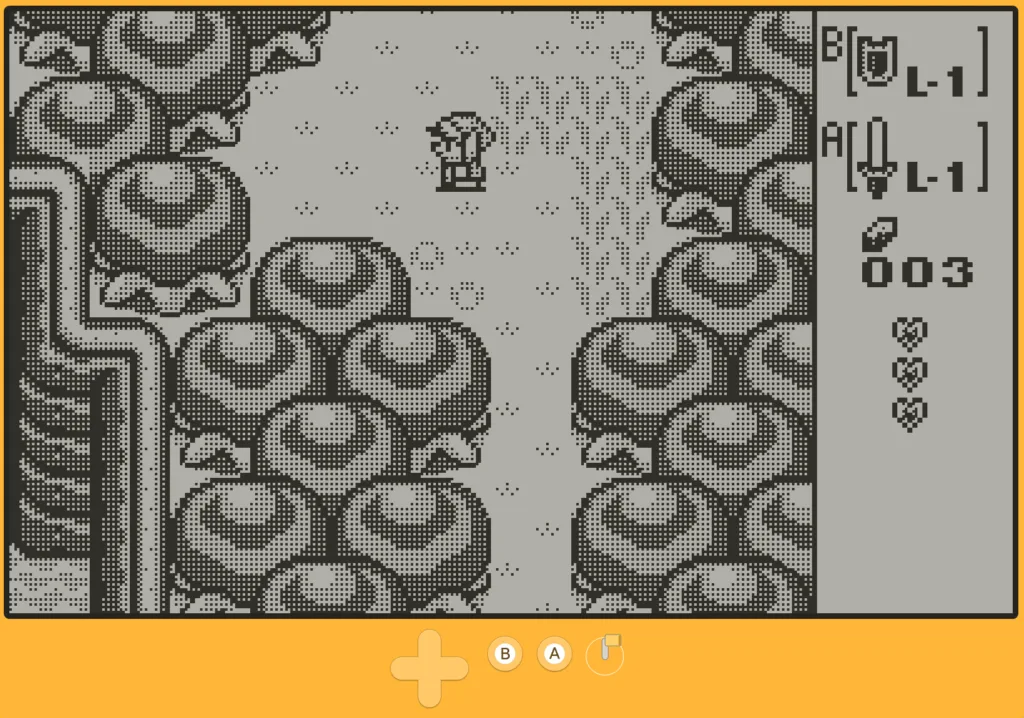
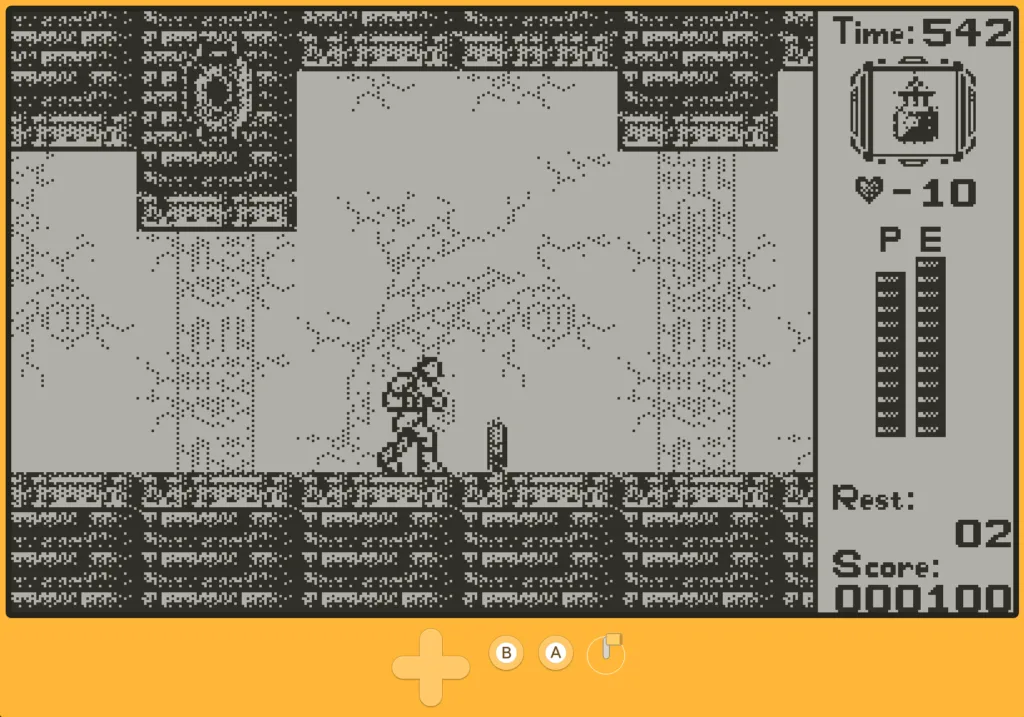
Zelda and Castlevania screenshots
Sure, devices like the Modretro Chromatic and Funnyplaying FPGBC are already plenty portable, with sizes similar to the original Game Boy Color. But you know what’s even more portable? The much smaller Playdate, and now that it can chew through Game Boy titles with the help of CrankBoy, you can easily take your GB library with you on what is likely the smallest portable in your house.
I can concede that using a crank with Game Boy games is something of a novelty — unnecessary, even — but you know what? It’s proving to be a bunch of fun. I especially like that you can download game covers and patches directly from the emulator. It’s also nice to see that I can choose whether to add native Playdate support to my ROMs. No matter how you slice it, CrankBoy is an incredibly versatile Game Boy emulator for the Playdate that goes well beyond mere emulation, ensuring it feels at home on the hardware it was made for.
If you’d like to check out CrankBoy, you can grab the sideloadable files directly from GitHub. I can absolutely confirm this is a journey worth taking. Oh, and if you like what you see, you can donate to the developer on Patreon. Enjoy!

CrankBoy