Between the Ayaneo Pocket DS, AYN Thor, the recently revealed Anbernic RG DS, and, of course, the original DS and 3DS systems, gamers have a good number of options for their dual-screen gaming needs.
But what if you can’t afford to buy another device? What if you’re a minimalist and want to squeeze the most out of what you currently have? What if you’re just lazy and don’t want to go through the hassle of setting up a new handheld from scratch?
If any of these apply to you, then you are the target audience for the Retroid Dual Screen. At least, you should be.
With dual-screen handhelds on the rise, the Retroid Dual Screen add-on provides a unique niche
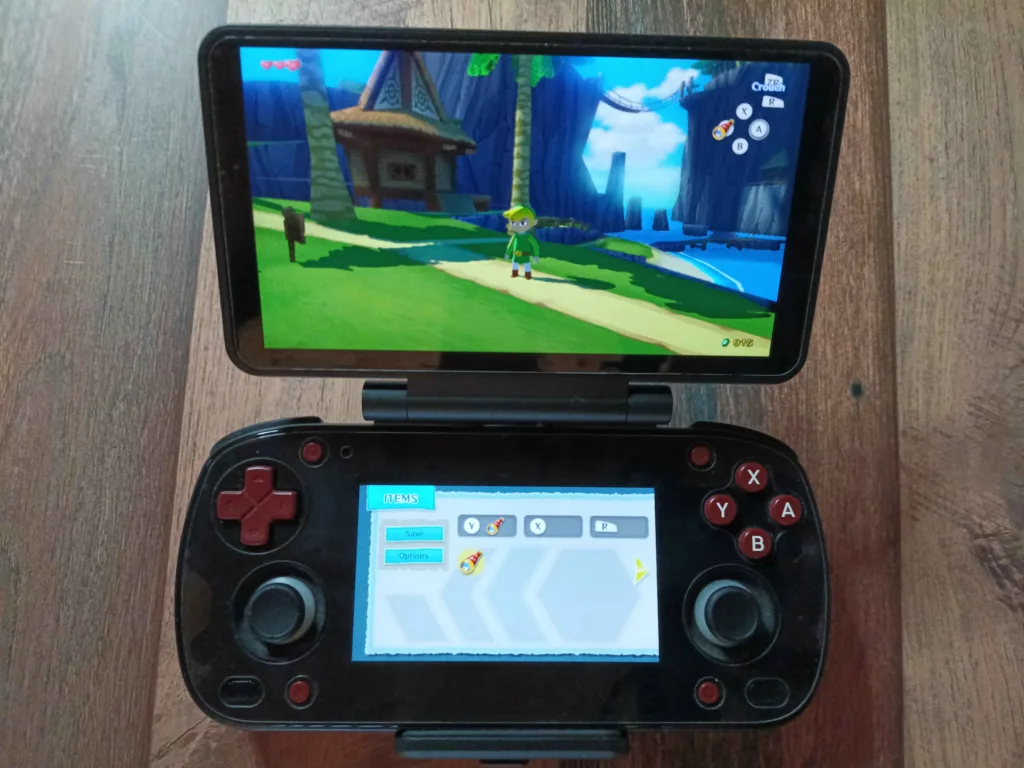
The Retroid Dual Screen (RDS) is a $69 add-on that provides a 5.5-inch 1080p AMOLED display for your current handheld; it fits a range of devices. For me, this was the Retroid Pocket Mini v2, which also has an AMOLED screen. Now you might be thinking, “two AMOLED screens sound amazing”, and it absolutely is, but there are a lot of caveats that come with it.
What’s good about the Retroid Dual Screen add-on
| Size | 5.5″ |
| Resolution | 1920 x 1080 (1080P) |
| Refresh Rate | 60 Hz |
| Brightness | 500 nits |
| Contrast | 100,000: 1 |
| Color Gamut | 107% sRGB |
The upsides for the RDS are pretty obvious. You get a high-quality second screen for your device that opens up the door for DS and 3DS emulation, where you’re not trying to cram both screens on one display or switch between them. Having two AMOLED screens for DS and 3DS emulation opened my eyes to how great these games can look, especially when upscaling the resolution. The image is crisp and clear, and the colors are vibrant. I didn’t tinker with 3DS emulation before the RDS since I have a New 3DS and New 3DS XL, but playing those games on the RP Mini v2 with the RDS addon gave me a whole new appreciation for DS and 3DS games.
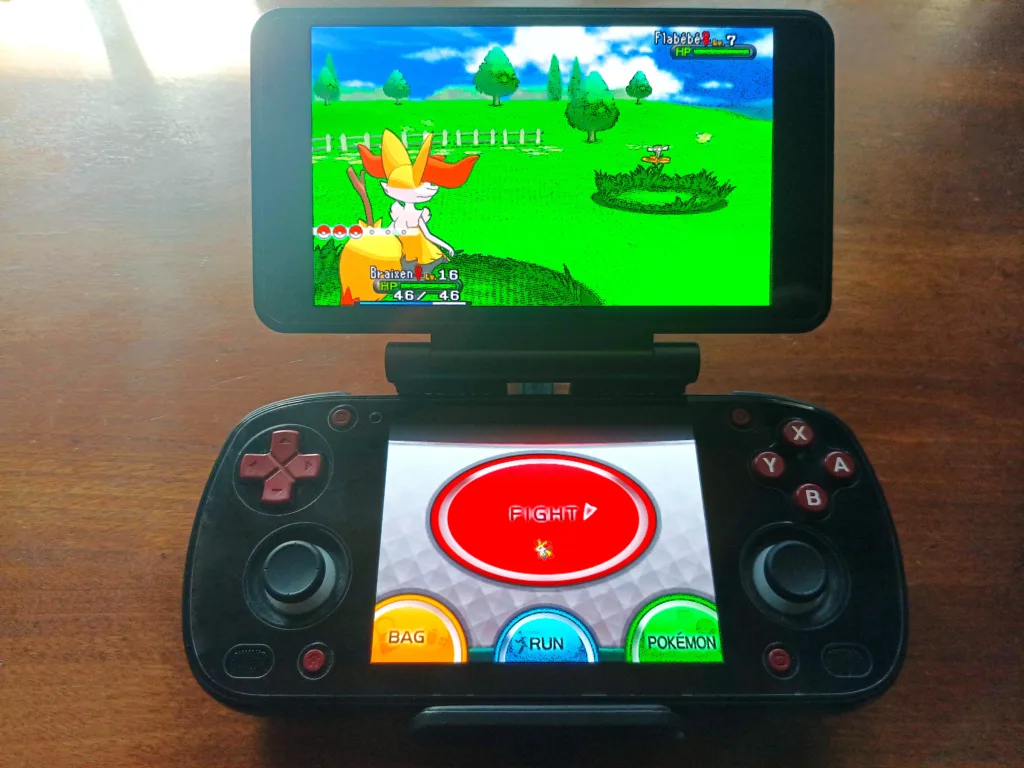
As for using the RDS to actually play dual-screen games, my experience has been pretty great overall. The RP Mini v2’s square-ish aspect ratio of 31:27 works out extremely well for bouncing back and forth between buttons and touch input, and felt pretty natural compared to using a DS or 3DS. My only real gripe is that the RP Mini placed the D-Pad above the left stick, which isn’t optimal for playing 3DS games. But if the left stick were above the D-Pad, then it wouldn’t be optimal for DS games. It’s kind of a lose-lose situation.
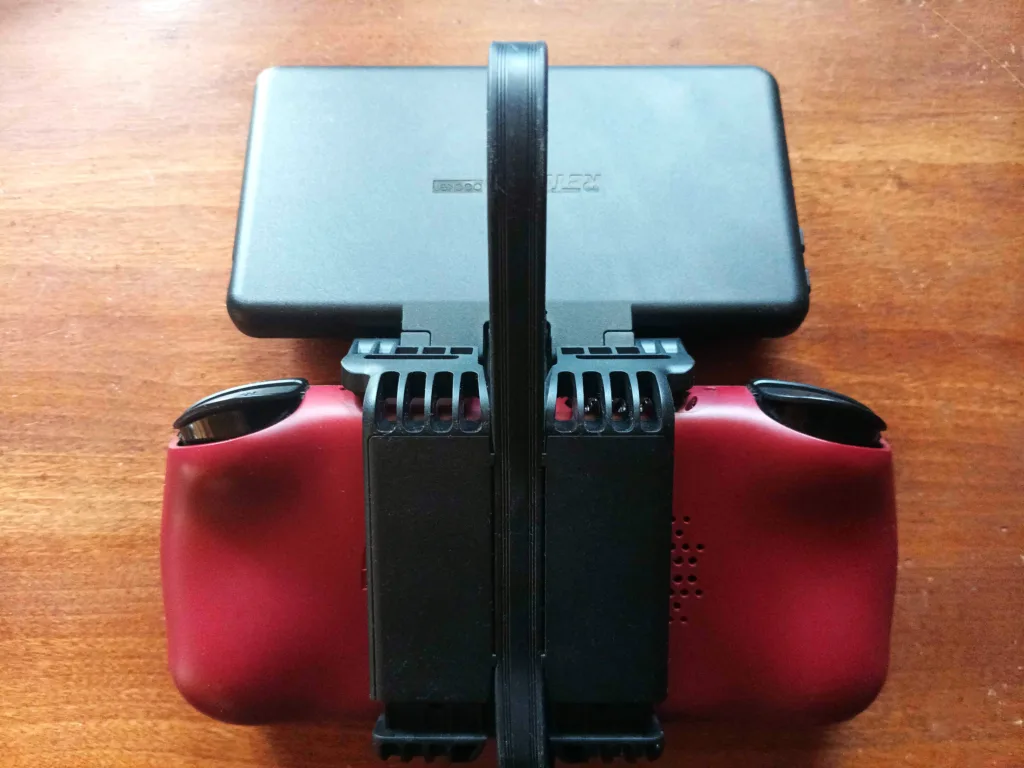
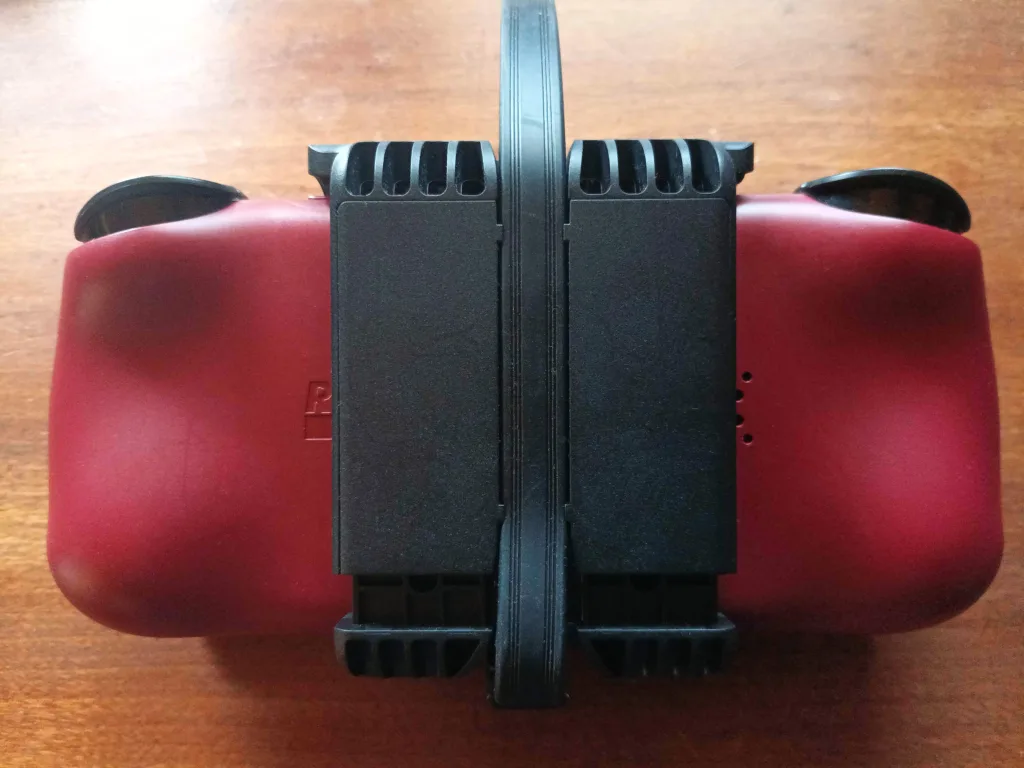
The feel of the RDS addon itself isn’t too bad once you get past the clip taking up most of the space on the back. The weight of the RDS feels well-balanced here, and at no point did it feel heavy or uncomfortable to hold.
What’s bad about the Retroid Dual Screen add-on
When you have the RDS with your emulators set up and you’re playing DS or 3DS games, it is a wonderful experience, but getting to that point can be rather frustrating.
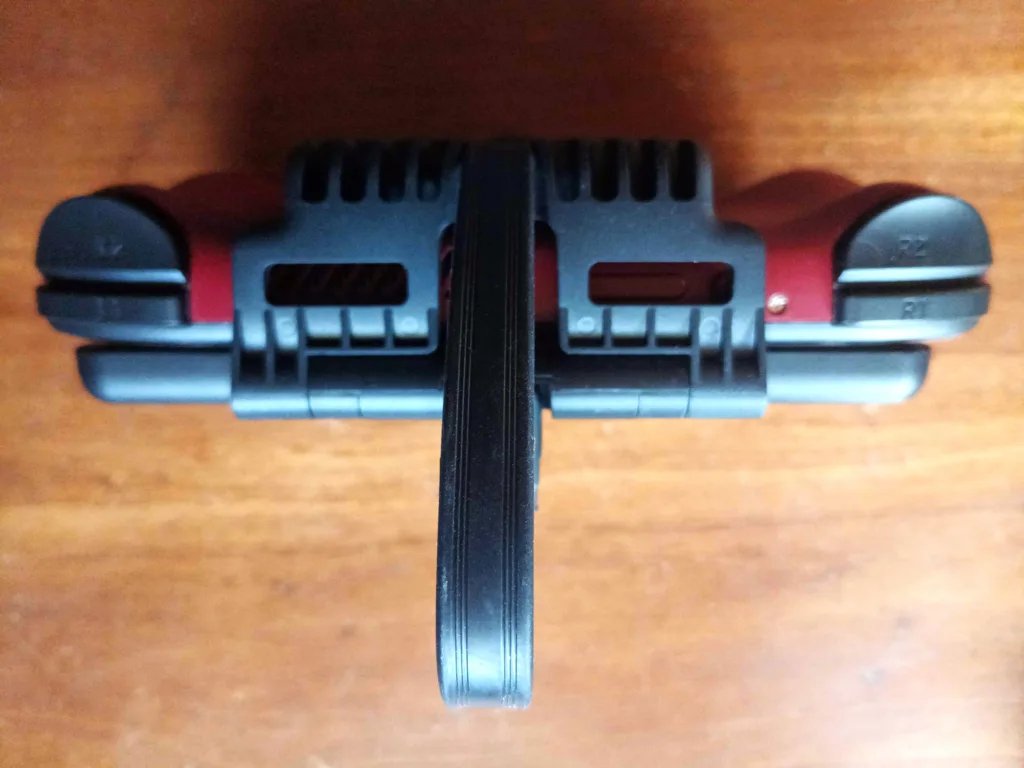
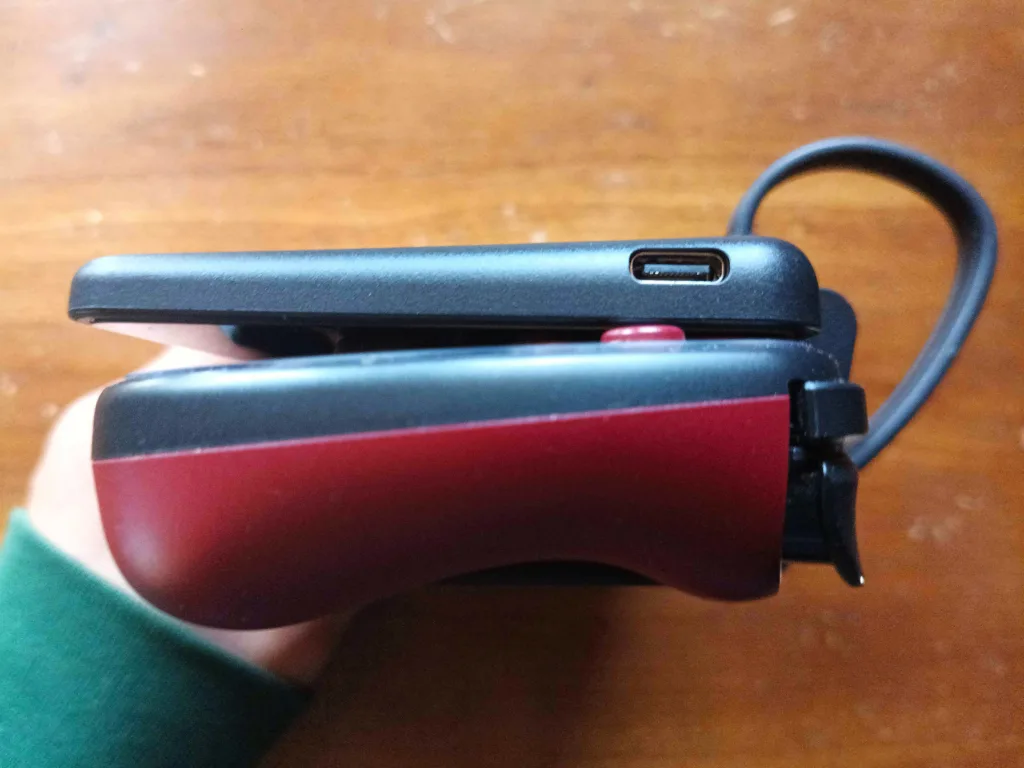
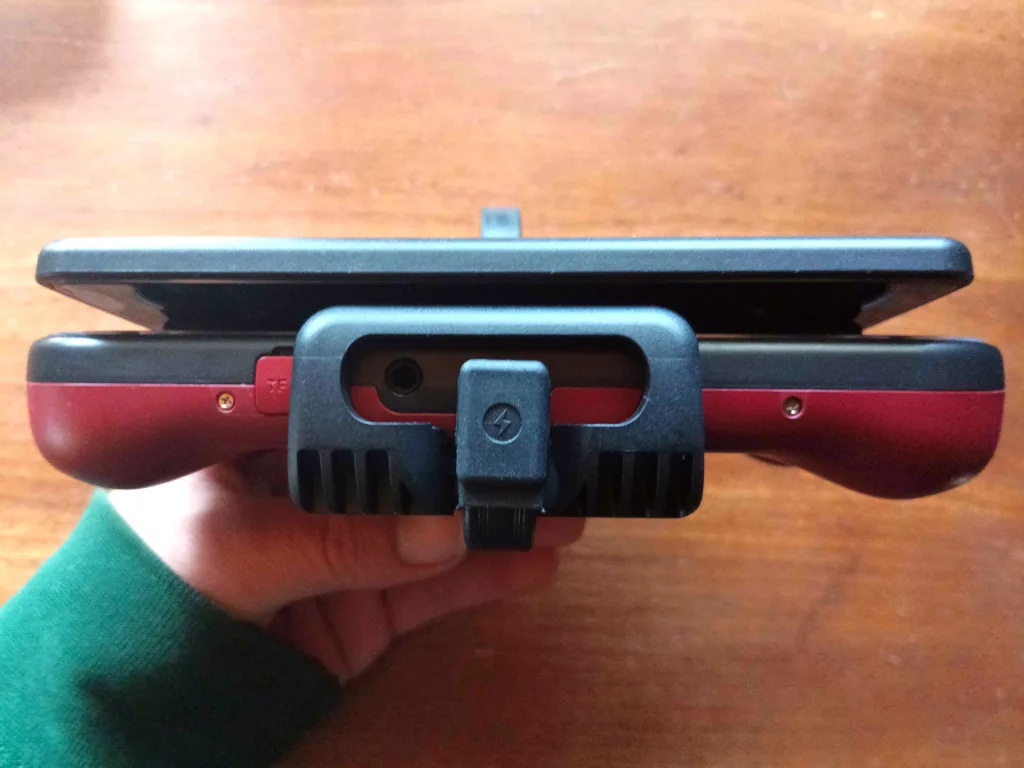
The first thing you’ll notice is how the addon covers the volume and power buttons. The volume buttons being covered don’t bother me too much since you can adjust volume through Android, but the covered power button is very annoying. Even with my small fingers, I can’t reach the power button with the RDS attached, so I have to find whatever skinny pointy thing is closest to me to press it.
Once you get past the lack of access to certain buttons, you’ll need to set up your device and emulators to take advantage of the second screen. This isn’t a “how-to” guide, so I won’t get into the weeds of it, but you will need to change your settings for an external display, a home screen app that allows launching apps on different screens, Azahar for 3DS emulation, and specific forks of Melon DS and Cemu to use both screens for DS and Wii U games. Melon DS in particular will be annoying to set up if the RDS is a different size from your device’s display and you want both screens to be the same size when playing DS games. I gave up on that endeavor and let the top screen display images that are a bit bigger.
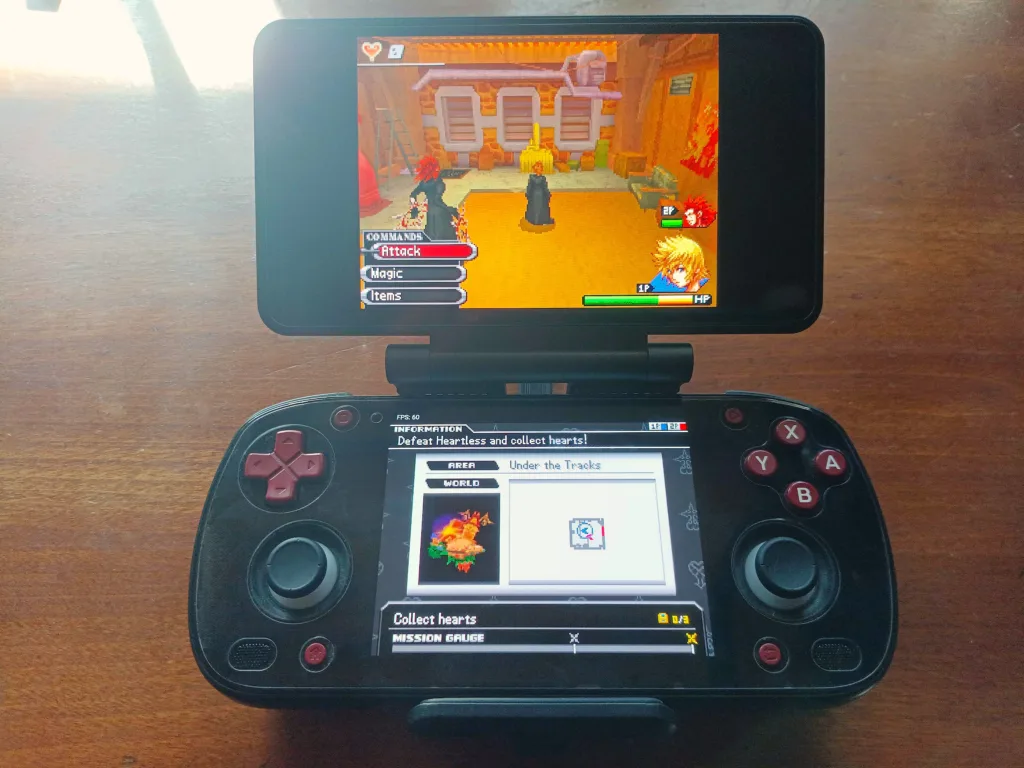
And finally, we have to address the battery drain of the RDS. I ran some battery-drain tests playing DS and 3DS games on High Performance, using the Smart fan setting at max brightness. 3DS games ran for 3 hours and 2 minutes, while DS games lasted 3 hours and 33 minutes. I didn’t run a complete battery-drain test without the RDS, but the RP Mini was at 54% at the same 3-hour 2-minute mark without the RDS plugged in. And after 7.5 hours of leaving it in sleep mode with the RDS attached, the battery went from 100% to 23%. So yeah, you’ll need to disconnect it when it’s not in use, something Android has struggled with for some time; connected peripherals excessively drain battery.
The Retroid Dual Screen add-on isn’t a pretty device by any stretch
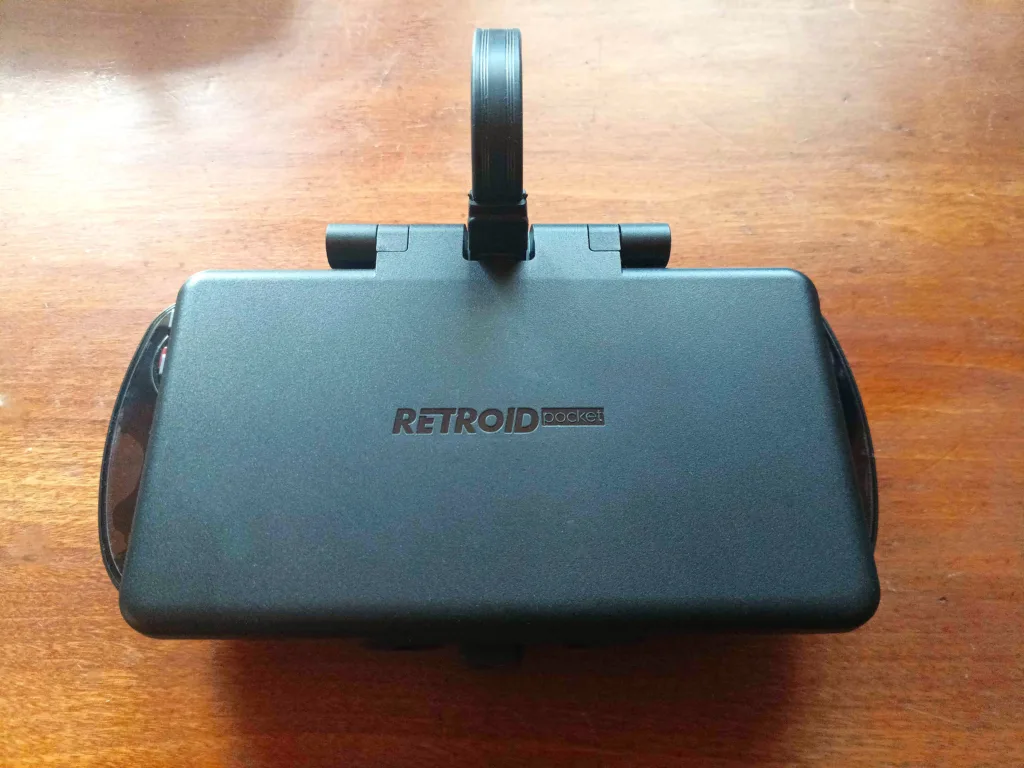
There’s no beating around the bush; your device will instantly become hideous with the RDS attached, especially if you’re using the USB-C cable that Retroid ships with it. The added bulk of this add-on will kill any hope of carrying your handheld around in your pocket. It’s rough on the eyes when you’re not using it, and impractical to carry around anywhere that’s not your own home, which might actually be a good thing, because it discourages you from being caught in public with this monstrosity of an attachment.
Retroid’s Dual Screen add-on fills a unique niche for the right person
The RDS is a mixed bag of extremes. You do get a great display at a reasonable price that will vastly improve your experience emulating DS and 3DS games, but only if you’re ok with the extra bulk, ugliness, and the setup needed to get there. If you’re ok with all of that, I believe that you’ll find this to be a great way to breathe new life into your current handheld.
Pros
- High-quality OLED screen
- Dual-screen gaming on two screens
Cons
- Ugly when not in use
- Makes your handheld bulky and un-pocketable
- Battery drain go brrr
| Manufacturer | Product | Price |
| Retroid | Dual-screen attachment | $69 |
As inconvenient as it is, the pros of the RDS outweigh the cons for those that want dual-screen emulation without buying a new handheld.