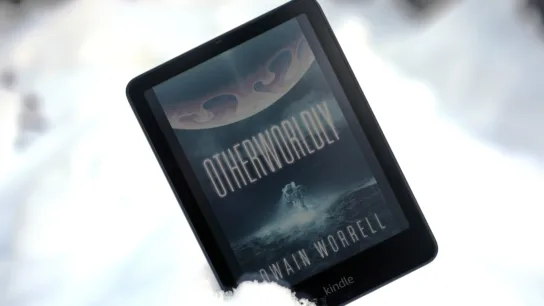

I’ve been reviewing Boox devices for many years, since before the UI was translated. I’m a longtime user and critic who respects the company’s vision of creating versatile e-readers running Android, and while I can’t say I love every release, watching the company improve over the years has been enthralling. It’s especially exciting when you see all of this hard work take shape in a new release, and for me, I’m absolutely loving the Boox Tab X C.
Yes, it’s a large device at 13.3 inches, but that’s why it excels; it’s the best E Ink device I’ve used for reading and marking up large-format content like PDFs, hands down. Now let’s dig into the specifics of why that is.
The price may be high, but the powerful specs prove why
The Boox Tab X C is available through the Boox website as well as Amazon and Best Buy, though Best Buy appears to be sold out. No matter where you order from, the E Ink tablet retails for $820, which isn’t cheap by any means. Then again, there are no other E Ink devices that offer such a large color screen, so if size matters to your workflow, there’s little else that can compete with the specs the Tab X C is pushing.
| Screen: | 13.3″ Kaleido 3 (4,096 colors) glass screen with flat cover-lens |
| Resolution: | B/W: 3200 x 2400 (300 ppi) Color: 1600 x 1200 (150 ppi) |
| Touch: | BOOX InkSpire stylus touch + capacitive touch |
| CPU: | 2.8Ghz Octa-core + BSR |
| RAM: | 6GB |
| ROM: | 128GB |
| Connectivity: | Wi-Fi + BT 5.0 |
| OS: | Android 13 |
| Document Formats: | PDF, CAJ, DJVU, CBR, CBZ, EPUB, EPUB3, AZW3, MOBI, TXT, DOC, DOCX, FB2, CHM, RTF, HTML, ZIP, PRC, PPT, PPTX |
| Image Formats: | PNG, JPG, BMP, TIFF |
| Audio Formats: | WAV, MP3 |
| Button: | Power Button |
| Battery: | 5,500mAh Li-ion Polymer |
| Dimensions: | 287.5 x 243 x 5.3 mm (11.3″ x 9.6″ x 0.21″) |
| Weight: | Approx. 625 g (22 oz) |
A huge color E Ink display with even lighting is a sight to behold


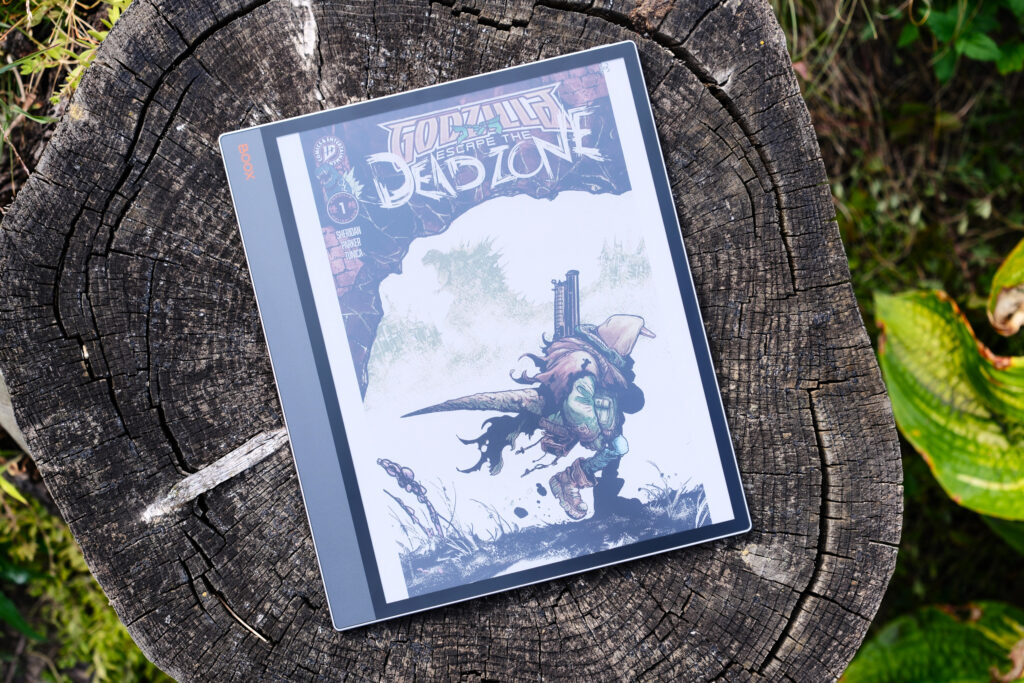
A few different comic book covers
The Boox Tab X C offers a 13.3-inch Kaleido 3 screen at a 4:3 ratio, which means it is mostly square (rather than an unwieldy rectangle). Like every other Kaleido screen, there is a black and white layer, and a color layer that work in tandem to produce the text and images on the screen. Each layer offers a different resolution, where the B/W layer is 3200 x 2400 at 300 ppi, and the color layer is lower at 1600 x 1200 at only 150 ppi.
While this may sound like images, especially color ones, will appear low-res on the screen, in practice, everything looks sharp and crisp, both black text (since the B/W layer is a Carta 1200), and colors that feel pretty close to newspaper print (think of the comic strips in a newspaper).

Manga landscape view split page
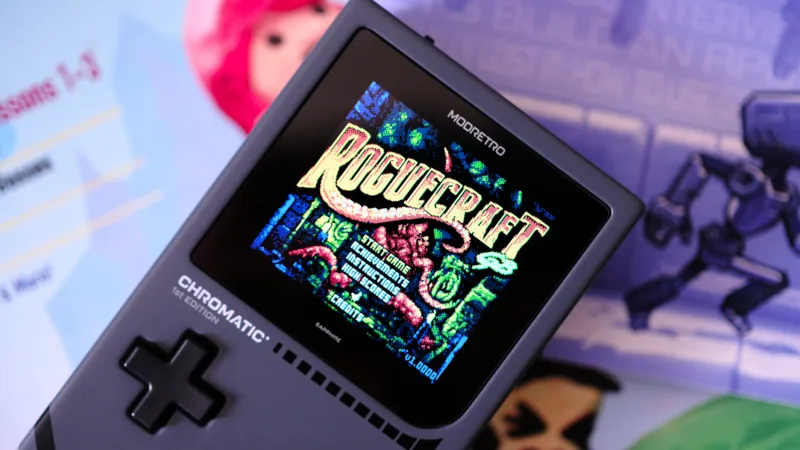
I concede that not every implementation of Kaleido has been perfect; there’s a reason the tech has a bad wrap for low-res colors, but for the Boox Tab X C, it simply isn’t a problem. Case in point, I’ve been using the device to read old gaming magazines and player guides, and it’s been an absolute joy, with the text being quite crisp. You can tell the note-taking e-reader is designed around consuming PDFs at full size, and boy, does it deliver. Compared to a competitor like the reMarkable Paper Pro (which uses a unique Gallery 3 display that it calls Canvas), the Boox Tab X C beats it handily in size, refresh rate, and, dare I say it, in producing better-looking color images.
That’s all to say, whatever magic recipe Boox has cooked up for the Tab X C screen has made me forget about every other large note-taking e-reader in the house. Still, there are a few niggles here and there. For one, some of my B/W content, such as manga, occasionally shows a reddish color where black should be, and this isn’t the first Boox device to suffer from the issue. It’s rare, but it happens, and so far, I can’t nail down why, since all of my manga is ripped by hand under the same conditions, so ideally, all books should render similarly, and yet not all do. Thankfully, this only occasionally happens with images; regular B/W text novels have shown no signs of discoloration.


Manga in color and B/W
Now, when it comes to the front light, I can say it’s pretty even on the Tab X C, and this is good news as I have been unimpressed with many of the latest e-readers on the market and their uneven lighting, from Kindles that suffer from banding to Boox devices with visible shadows. I’m thrilled to see that such a large screen can distribute its front lighting evenly.
Like any modern e-reader, you can individually adjust the cool and warm lighting, so you can easily dial in your preferred brightness and tone, whether you prefer warmer pages for your novels and manga, or cooler colors for comics and magazines.
Still, at only 65 nits, I would love to see a higher brightness. While reading outdoors isn’t a problem, as you won’t even need the built-in lighting when you have the sun at your disposal, I wouldn’t mind a few more nits for reading indoors. Of course, the more light you add to the screen, the more washed out the colors get, so it is also understandable why the nits don’t go crazy high.
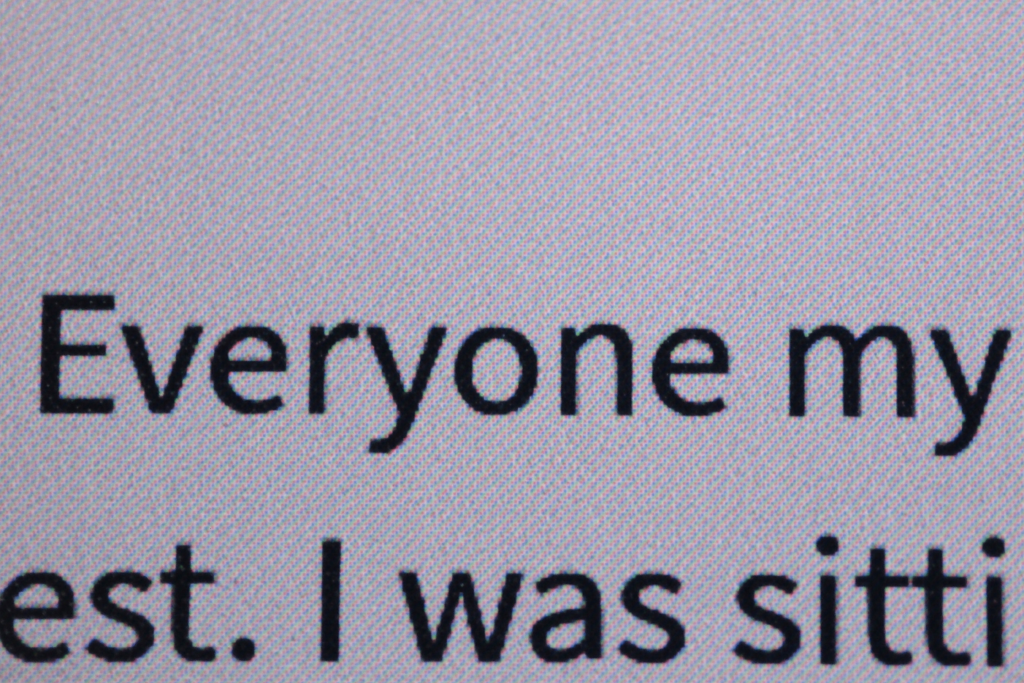
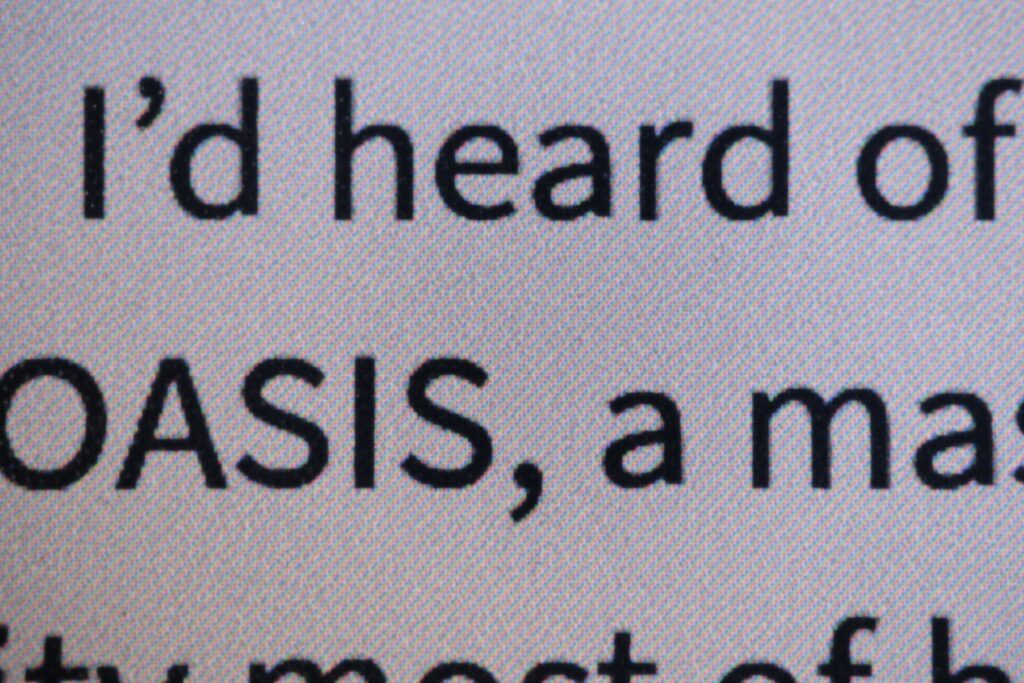
Text macro shots
This means you should forget everything you’ve heard about Kaleido screens being worse for color compared to Gallery; Kaleido has caught up, is faster, and looks great on a 13.3-inch screen. So if you’re looking for the best color E Ink screen on the market for consuming large content, I can confirm that’s the Boox Tab X C, hands down.
Reading large-format content on the device is a pleasure

Black and white content looks great on the screen
Despite its large size, the device is relatively easy to hold since the weight is distributed evenly across the 4:3 screen, with a grip on the side that makes things even more manageable. It’s not the E Ink device you grab when you want to read a novel in bed, but it sure is the device you grab when there is work to be done, like marking up a PDF or reading through a pile of magazines for research. And it’s not like the device is business-only; it’s also superb for reading manga and comic books.
For me, the Boox Tab X C is the Android tablet I grab when I want to digest paper media in digital form, for work and play, and I’m rather impressed with the color representation as well as the speed of the screen’s refresh rate. And trust me, I’m a diehard ghosting hater who sets every reading app to refresh on every page turn so that I can enjoy each page in all of its color glory.
Testing manga and comic books in NeoReader and Kindle app
Speaking of setting apps to refresh on page turn, I’m still finding that the Amazon Kindle app doesn’t always follow this command. Color comics contain plenty of ghosting in the Kindle app, but usually every other page or so, almost like the app is fighting the Boox setting. I found this to be true when testing the first Palma, back in 2023, and it still looks to be a problem on the Boox Tab X C.
On the other hand, the Kobo app does follow the rule to refresh on every page turn, making it a much better option as far as third-party reading apps go. Still, the best reading experience is through NeoReader, which is not something I would have expected a couple of years ago.
NeoReader finally contains all of the settings I need to read content in the manner I wish. Whether I want to display manga as a two-page layout in landscape or single pages in portrait, you can even set a book’s pages to scroll. Best of all, there’s finally a setting to change the default left-to-right reading direction to right-to-left, key for reading manga in the correct direction. While it’s a little hidden under several menus, things work fine enough to make me happy. However, I’d still love to see this setting reflected in the progress bar by reversing its direction to match, which Kindle has managed for many, many years.
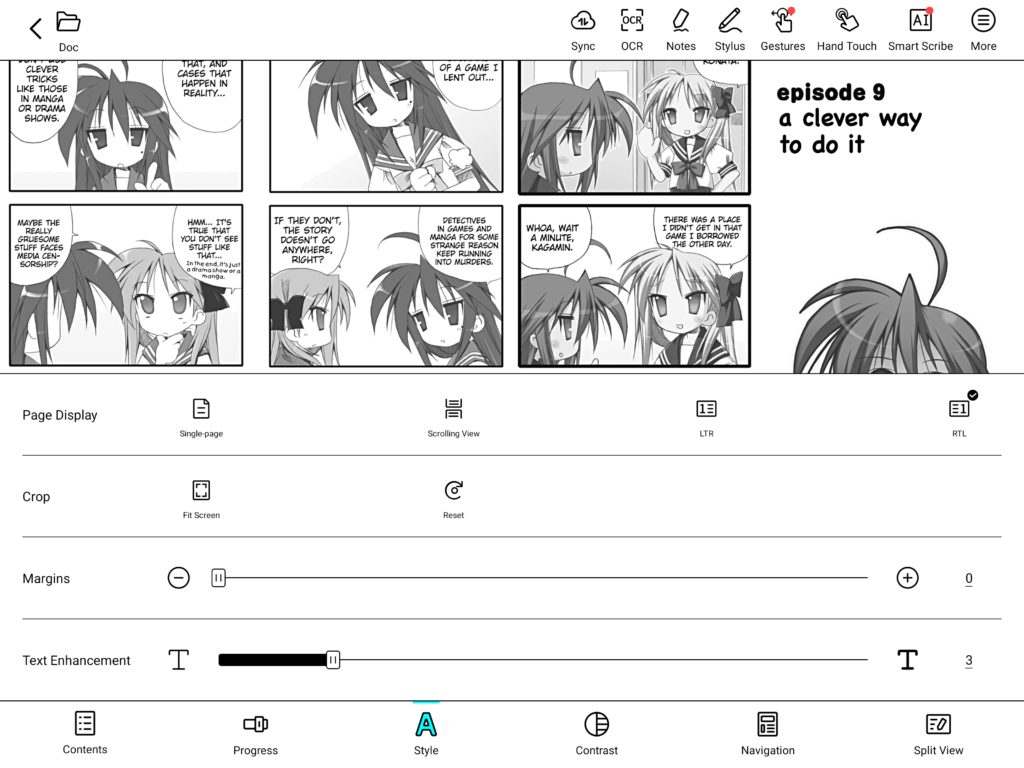
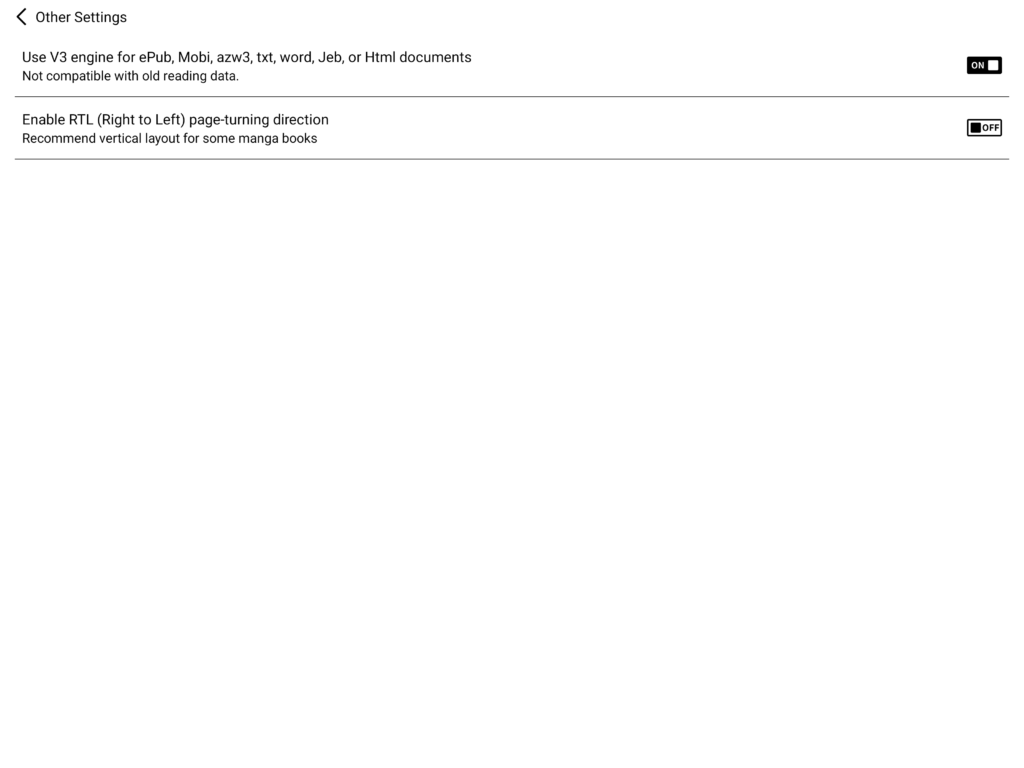
NeoReader reading options with RTL toggle
Of course, this brings me to how irksome it is to navigate Boox’s UI, and it’s clear it’s designed for power users. To me, the UI is rather clunky, but it’s also robust, which means if you want to dial in how an e-book looks, you certainly can, but it may take some trial and error to get to your desired results. It also doesn’t help that there are different controls all over the place, from nav balls to nav bars, to plenty of settings strewn about everywhere. After a while, you get used to it, but a Boox isn’t something you’ll hand to your parents and expect them to figure out.
Expect great performance with a battery that’ll last a workday
The Snapdragon 855 octa-core processor is the best chip currently available in an e-reader, so if you are worried about performance, don’t. Especially when there is 6GB of RAM included, which means you can easily open a bunch of apps and jump between them with ease, no need to worry about the OS killing an app in the middle of your workflow.
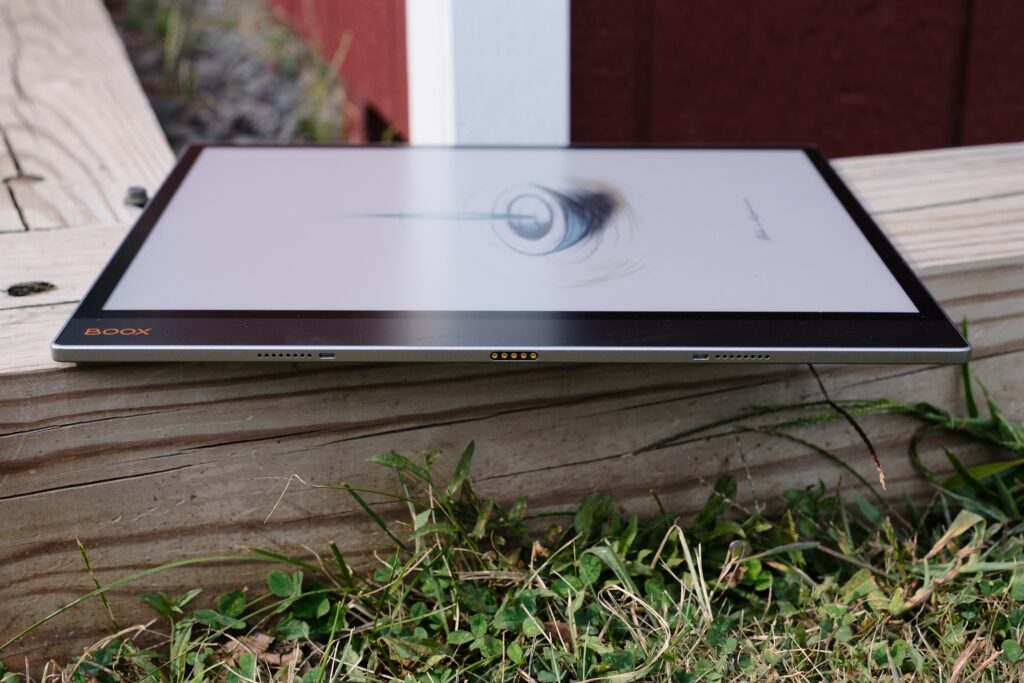
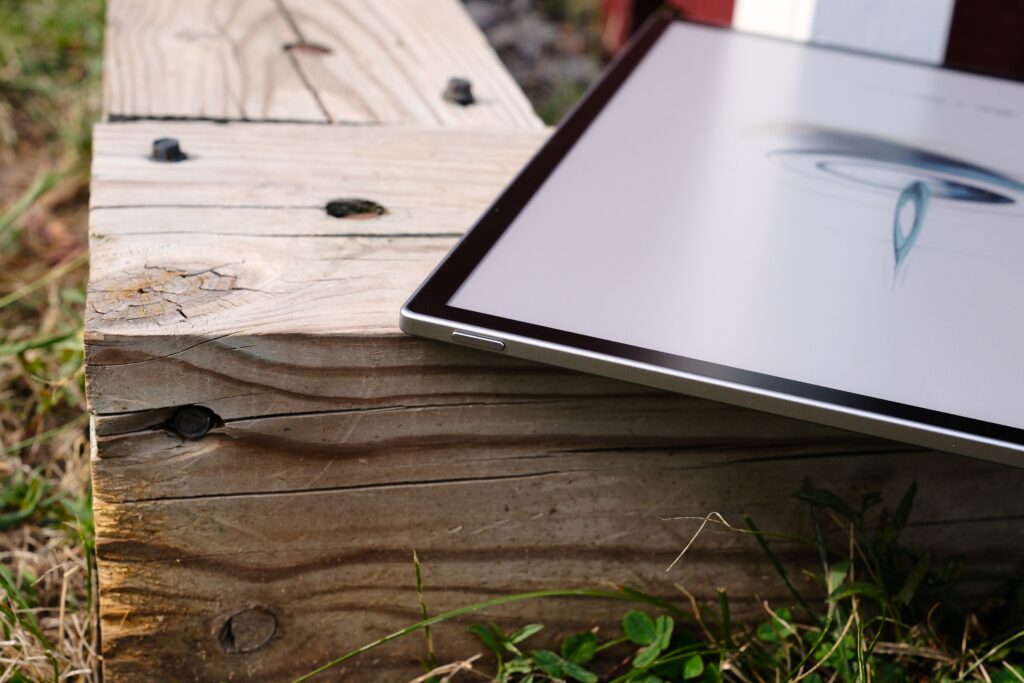
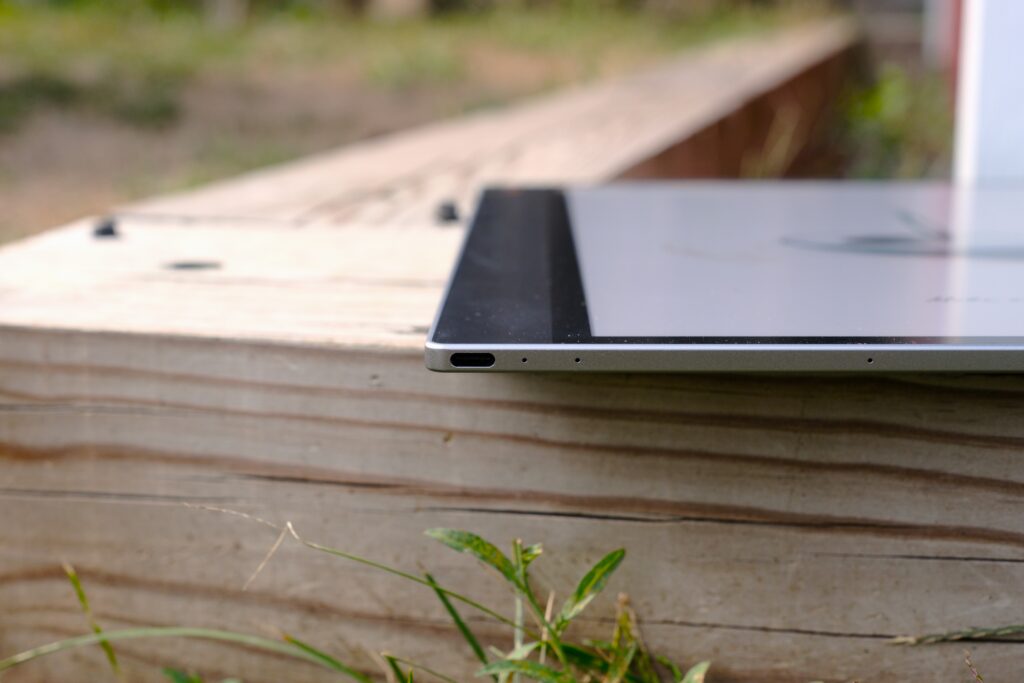
Ports and buttons
The device also packs 128GB of storage, so you can easily store all of your documents without having to worry about running out of room. PDFs, CBRs, and CBZs are all basically files filled with large images, so you’ll need the room for your library of color content. Sadly, there is no expandable SD slot like other Boox devices; you’re stuck with the storage that is built in, which is why I appreciate that there is a large amount.
Overall, thanks to the beefy processor (as far as E Ink e-readers go), plenty of RAM, and ample storage, you won’t find a more performant note-taking e-reader on the market. This is what accounts for the high price — you’re getting the best of the best.
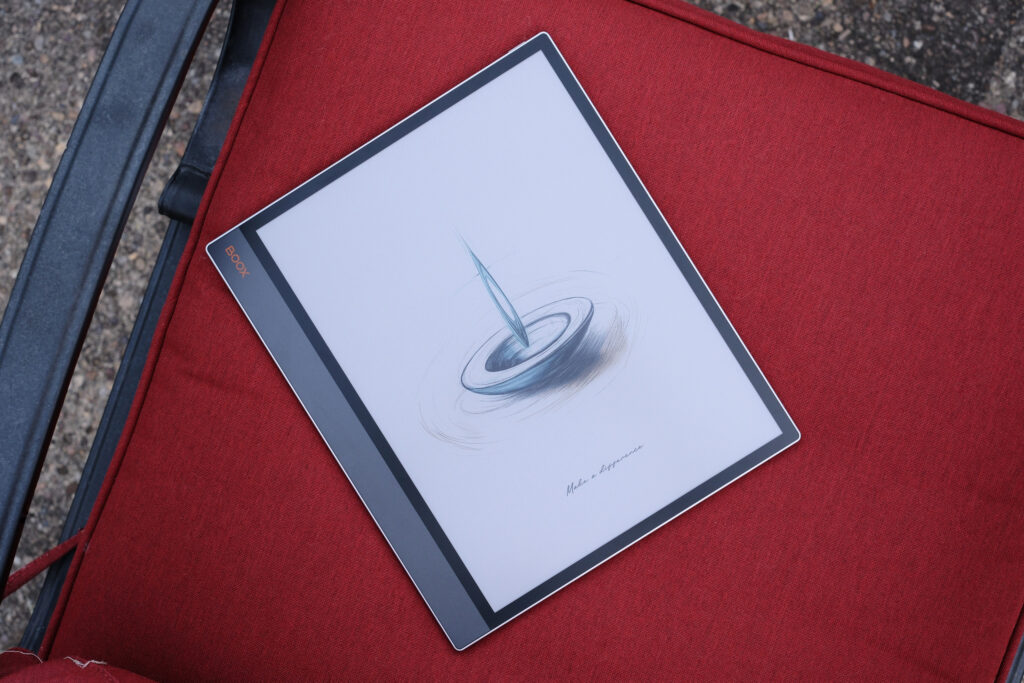
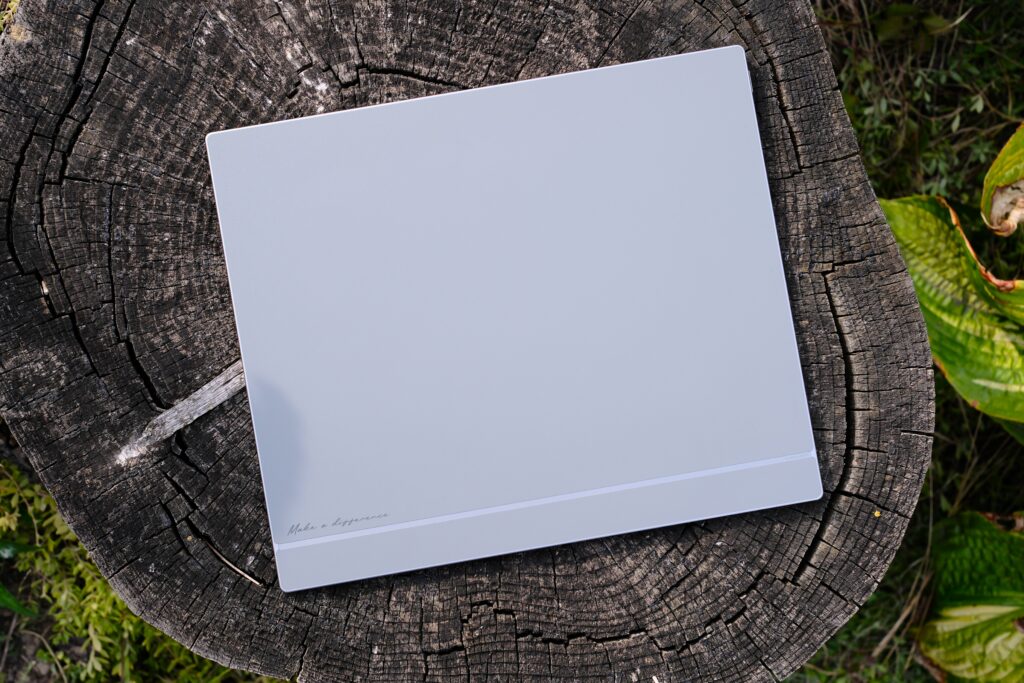
Front and rear
Now, when it comes to battery life, straight up, the standby time is absolutely baller. You can leave the tablet lying in a drawer for days or weeks, and it’ll still turn on the next time you pick it up. This does result in a long wake-up time from a deep sleep, something we covered in our Boox Go 7 review. But when you’re running an OS like Android, I’d rather a device sleep deeply and retain as much battery as possible, rather than burn through it for a faster boot. Basically, even if it is inconvenient to wait for the screen to turn on, there’s a good reason for it.
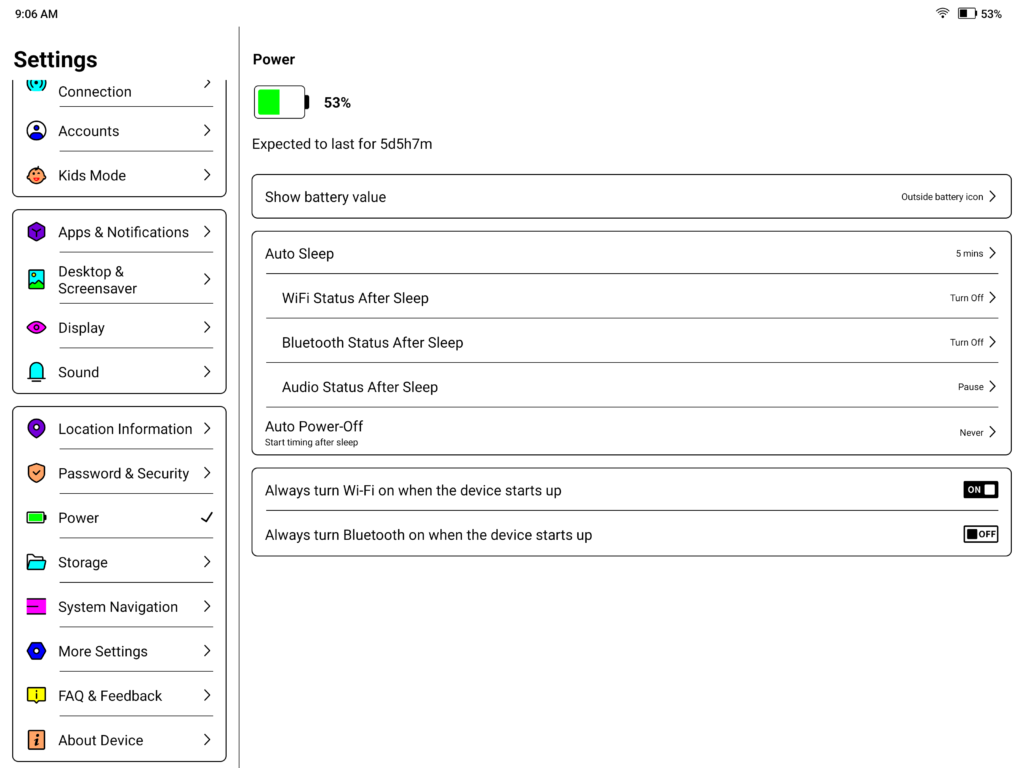
Battery life after several days of use, with several more to go
For overall battery life, 5,500mAh is enough for a workday, averaging 7–8 hours of screen time. This all depends on what you are doing and how bright the backlight is set. Rest assured, you can tote this digital note-taking device back and forth from the office without worrying about having to charge in the middle of the day.
What’s included, what’s optional
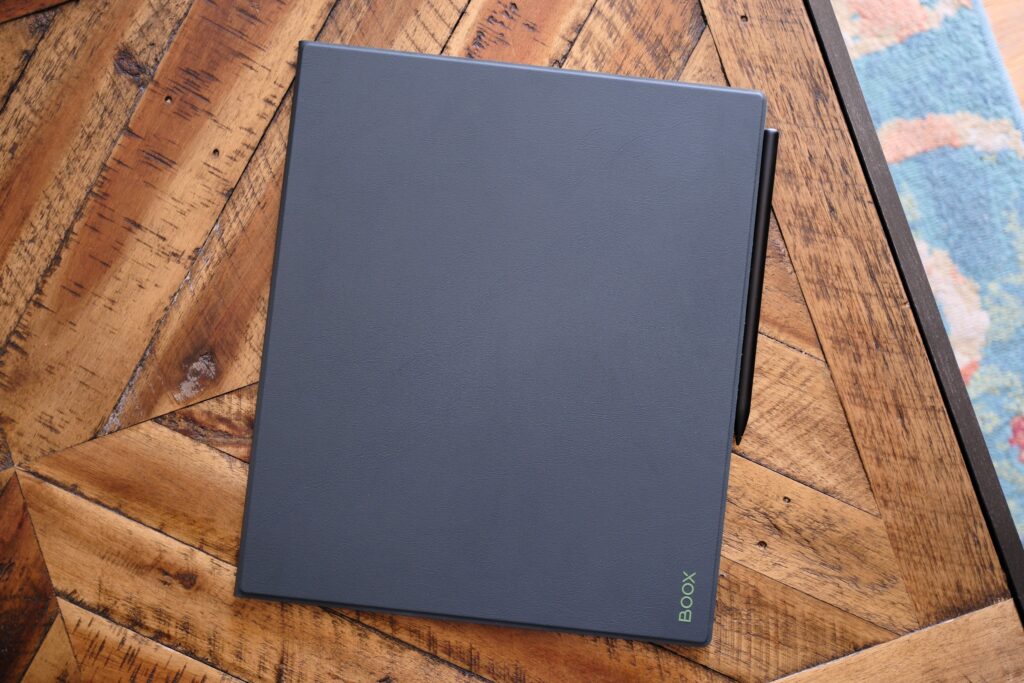
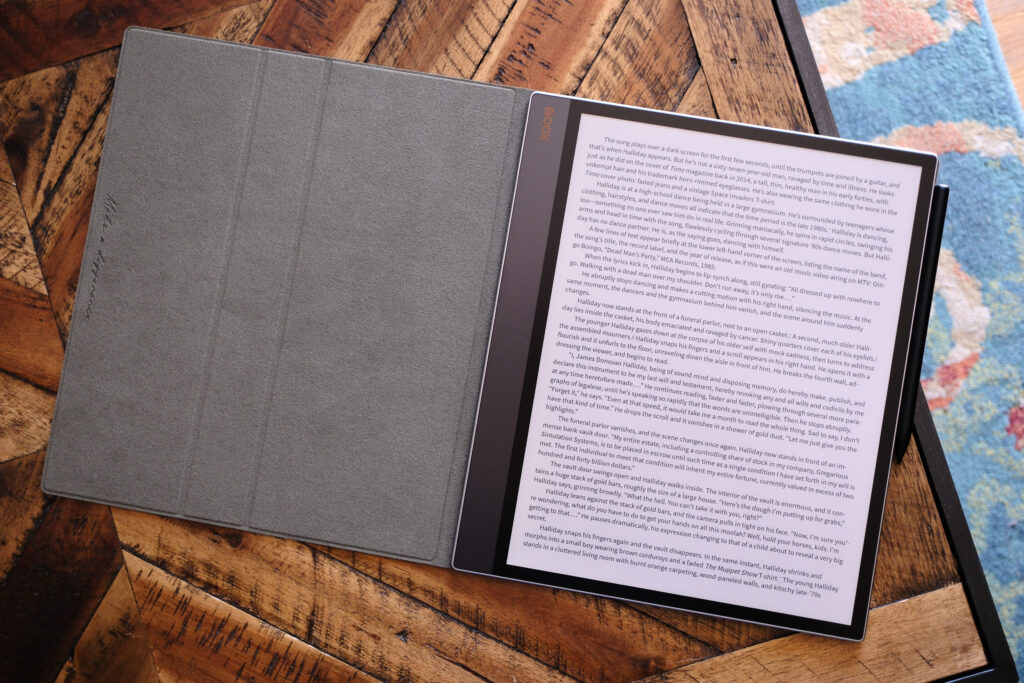
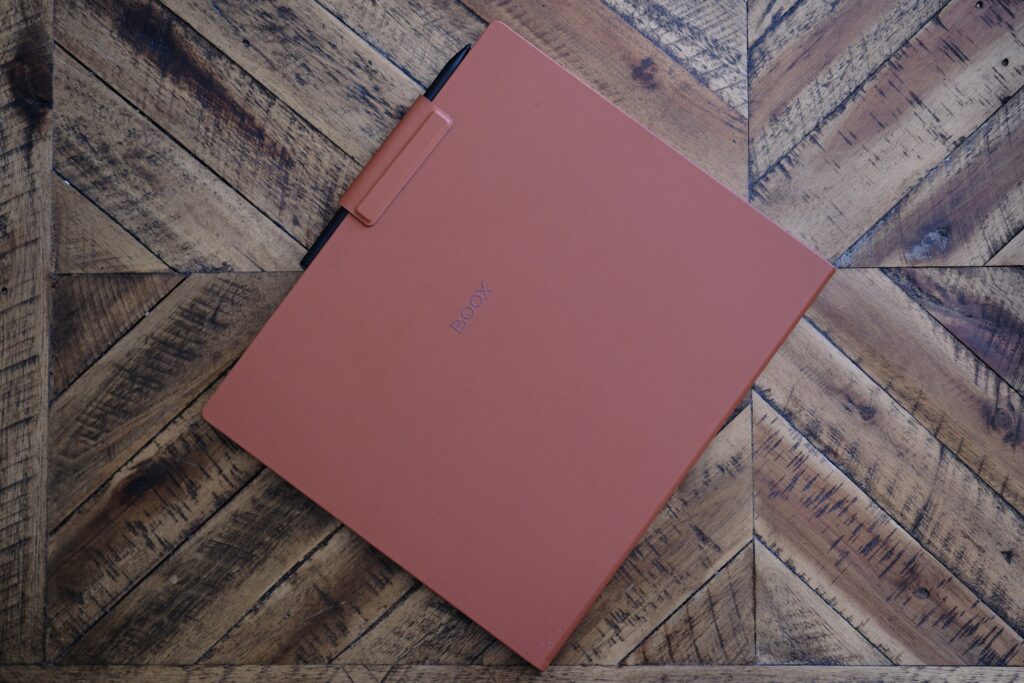
Standard case closed and open
The $820 Standard Bundle offered by Boox comes with the stylus and magnetic case. I find the magnetic case to be my go-to unless I plan on some distraction-free writing for the day. It keeps things slim, though I would have liked to see an attachable pen holder like the one that comes with the keyboard case.
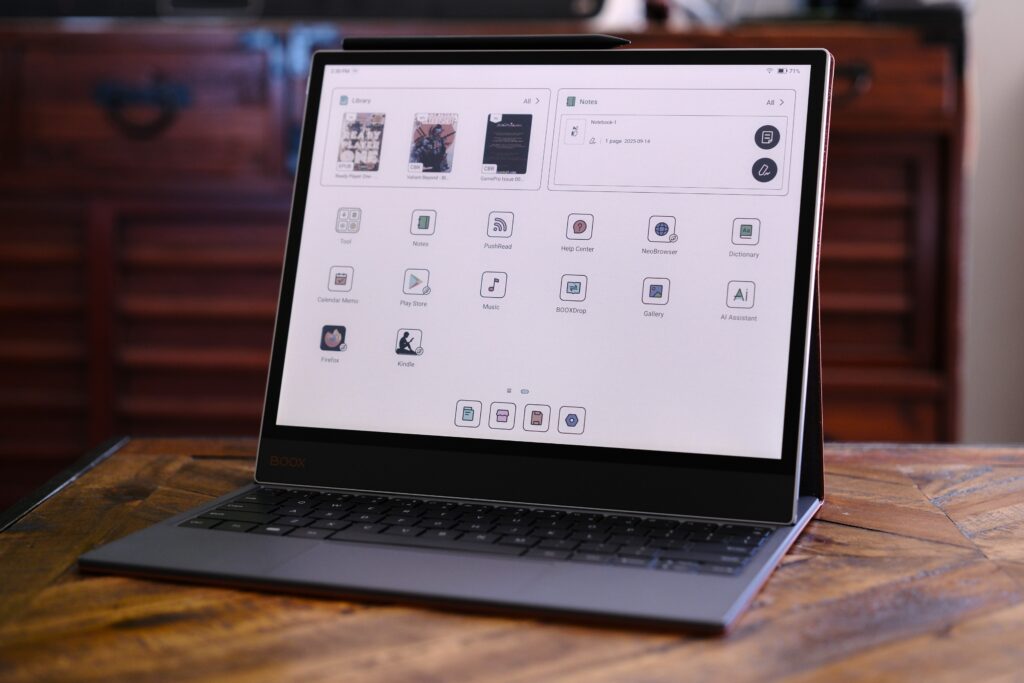
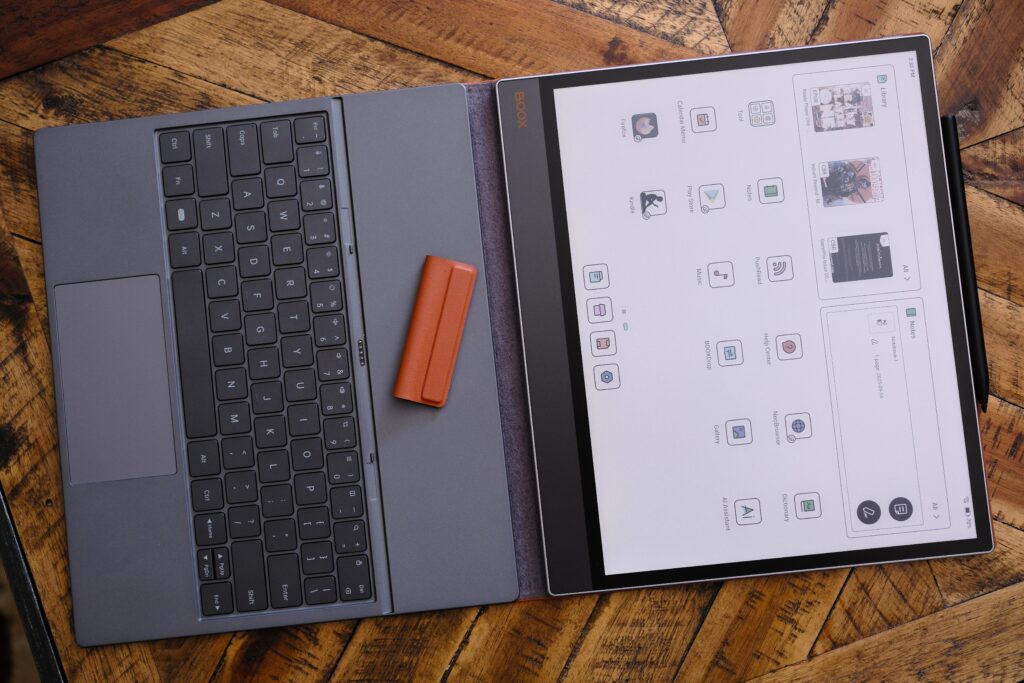
Keyboard Cover closed, open, and tented
If you would rather pick up the Keyboard Cover Bundle, that will set you back $970 (though there does appear to be a sale running right now for $925). What I like about the keyboard case is that it includes a touchpad. While the implementation of a cursor on Android using an E Ink screen is far from perfect, the functionality is there, meaning you can treat this note-taking e-reader as a laptop, as hard as that is to believe. Plus, if you’re into distraction-free writing, like the Pomera, the Boox Tab X C and its keyboard cover fill this niche quite nicely.
Drawing test with InkSpire in Notes app
The stylus is known as the InkSpire, and it magnetically attaches to the side of the Tab X C to charge. The pen works as expected, even without a Wacom layer in the screen, though it’s worth mentioning the screen itself is glass without any type of film on top to recreate the feel of paper. This makes for a slick feeling when writing, and some of you will like it while others won’t. The good news is that if you’d like to add some texture to the screen, there are options.
The Boox Tab X C is the best option for a large E Ink device
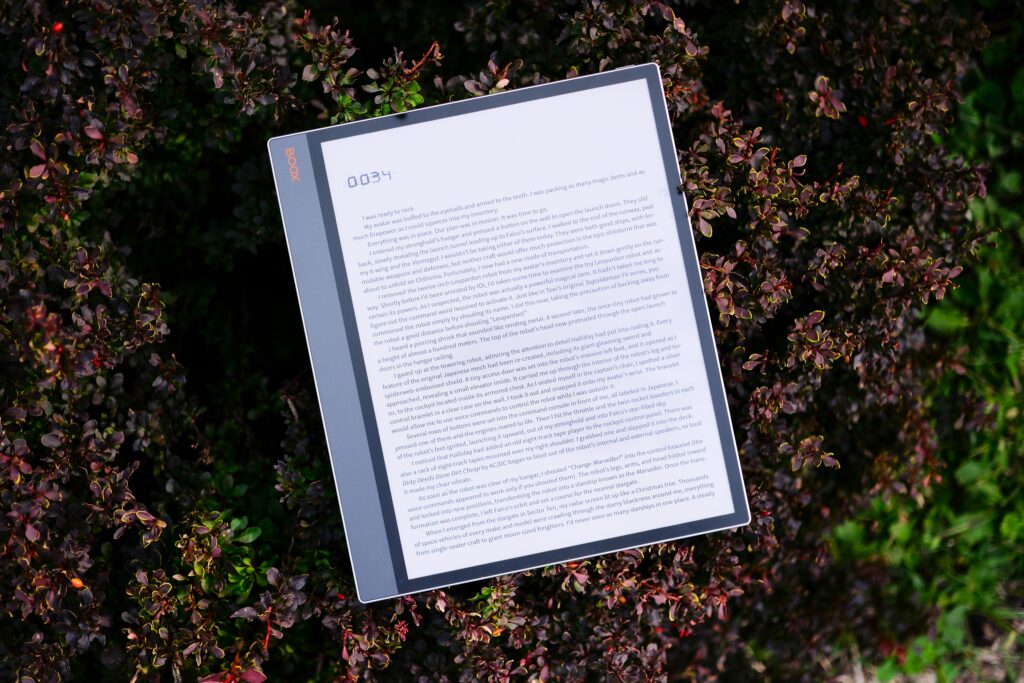
Text ePub e-book on screen
The Boox Tab X C is for anyone who demands quality. The device offers one of, if not the best, note-taking experiences, thanks to the fact that Android is running under the hood with endless apps to use. It’s also one of the best large-format readers on the market, especially since it is the largest on the market. I would even say it’s currently the best color e-reader out there, beating devices like the reMarkable Paper Pro with faster refresh times for similar-looking colors. No matter how you slice it, you’re getting what you pay for. Yes, the starting price of $820 is high, but it still clocks in under the price of Samsung’s Tab S Ultra, which is where I really see the Boox Tab X C competing, at least when it comes to reading and marking down documents.
I’ve watched for many years as Boox has improved its software and hardware, and it feels like we’ve finally reached the point where Boox is easily the leader in the E Ink space. The Boox Tab X C has impressed me with exceptional performance, with a screen that delivers lively colors and worthwhile contrast. While it may not be a device for everyone, thanks to a cumbersome UI, if you’re willing to invest time in learning how to use it, the Boox Tab X C can easily be one of the best assets in your tech toolbox.
Pros
- Biggest and most performant e-reader on the market
- Colors look great
- Fast refresh times, even on full refresh
Cons
- Expensive
- UI is a bit of a maze
- Not all apps follow Boox’s refresh settings
| Company | Model | Price |
| Boox | Tab X C | $820 |
The Boox Tab X C is mighty large, and that’s the point. It’s made for viewing and marking down PDFs, and it absolutely excels at this thanks to the powerful hardware that runs Android OS. Whether you want to read the web, an e-book, comic books, manga, or magazines, the Boox Tab X C Pro is the best note-taking e-reader on the market for digesting this content.