
Out of all the companies selling E Ink devices, be it e-readers or digital notebooks (or any combination in between), reMarkable feels like it’s the most divisive. The company takes a minimalist approach to its software design, which can either be a godsend for those sick of the complicated UIs of competitors like Boox or an annoyance for anyone who demands their expensive devices do more than the basics. Somehow, reMarkable straddles this contradictory line of minimalism and luxury, and the Paper Pro Move couldn’t be more of a perfect representation of these two opposing dynamics.
On the one hand, the Paper Pro Move offers an incredibly detail-oriented hardware design, ensuring it is easy to hold in one hand while using the stylus in the other. It really is the best replacement for a physical paper notepad I’ve ever used. But on the other hand, the underbaked software leaves me wishing I could install apps. I so desperately want to do more with the Move, but simply can’t.
At the end of the day, the Paper Pro Move won’t be for everyone, but if you’re already pleased with reMarkable’s featureset and ecosystem, dare I say it, the Move is reMarkable’s best digital notepad yet.
Price and specs
The reMarkable Paper Pro Move is sold directly on reMarkable’s website, but you can also find it at Best Buy. Pricing starts at $450, but if you’d like to add a folio or the Marker Plus, folios add $70–$140, and the Marker Plus adds another $50. Thankfully, depending on the bundle, there are small discounts, with the most expensive bundle topping out at $600, saving you $40.
| Size and weight: | 195.6 x 107.8 x 6.5 mm (7.7 x 4.24 x 0.26 inches)
Approximately 230 g (0.51 lb) |
| Display: | Canvas Color display (based on E Ink Gallery 3)
7.3” (9:16 aspect ratio) 1696 x 954 resolution (264 pixels per inch) |
| Processor: | 1.7 GHz Dual Core Cortex-A55 |
| Storage and RAM: | 2 GB LPDDR4x RAM
64 GB internal storage |
| Battery: | Built-in rechargeable (Li-ion) battery
USB-C charging 2,334 mAh |
| Connectivity: | Wi-Fi 2.4 GHz and 5 GHz USB-C port |
| Auto wake/sleep: | Sensors detect when a folio is open or closed |
| Price: | $450 |
The 7.3″ color display is a pleasure, but the lighting is weak
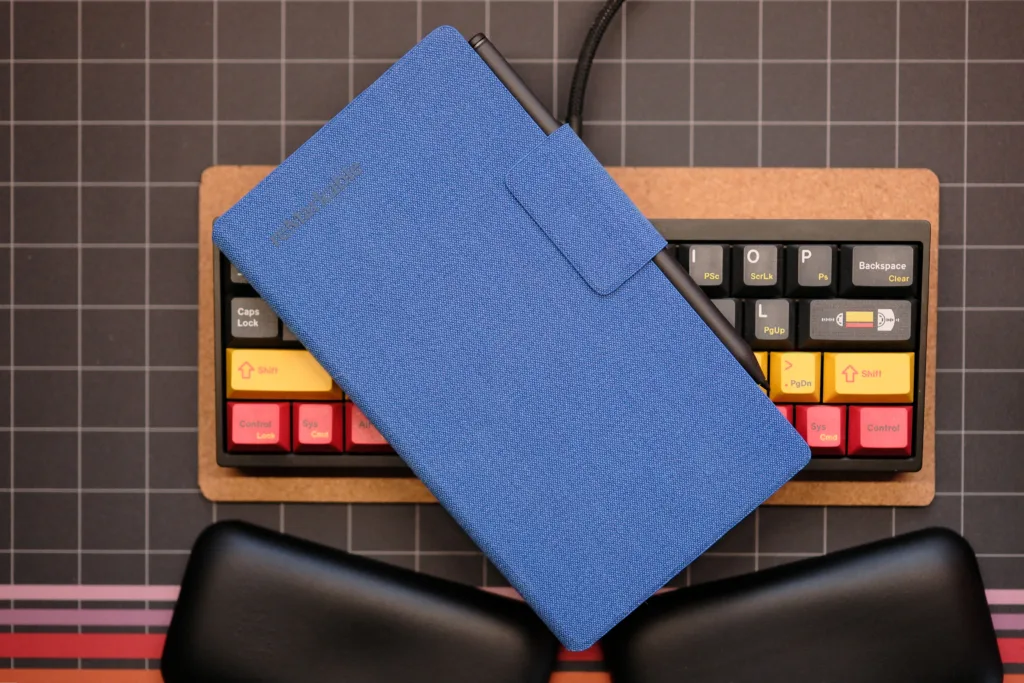
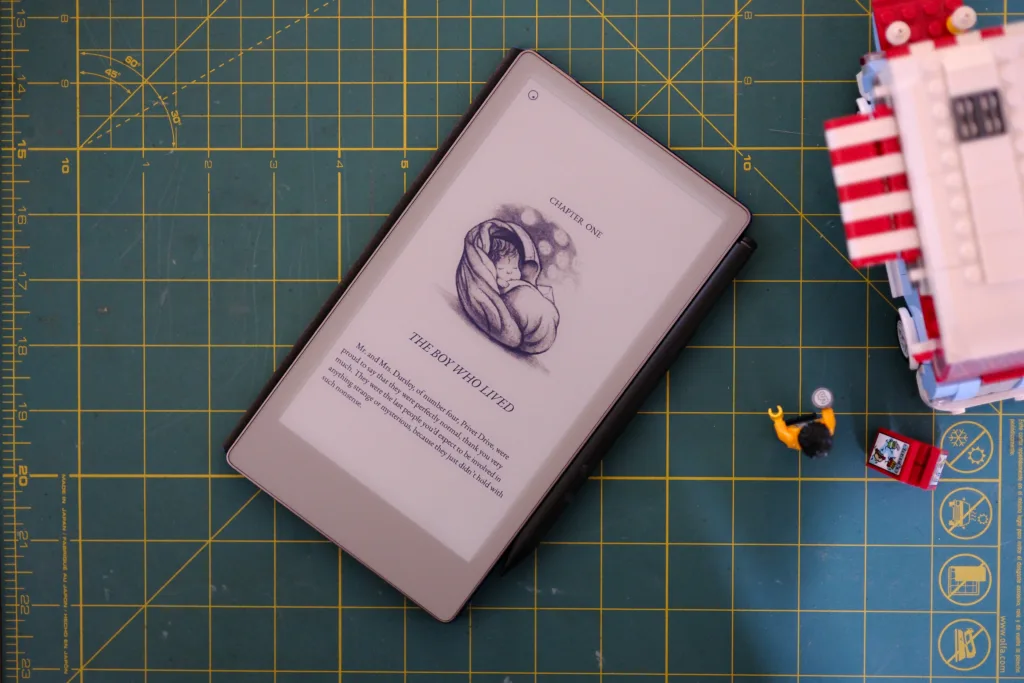
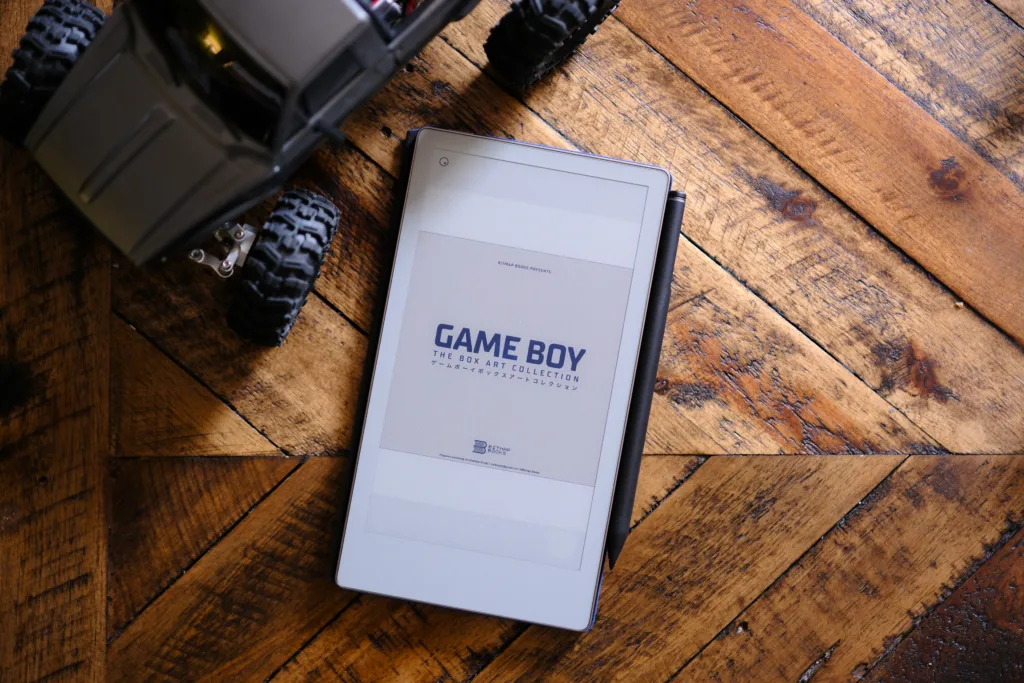
The reMarkable Paper Pro is a sexy device
The Paper Pro Move offers a fairly unique display in the E Ink space. First off, it offers a 9:16 ratio at 7.3 inches, which is pretty unique for e-readers and digital notepads. The screen is tall, but not that wide, a lot like a Moleskine notepad, showing that reMarkable has indeed designed the Move with a particular vision, replacing your pocketable paper pads.
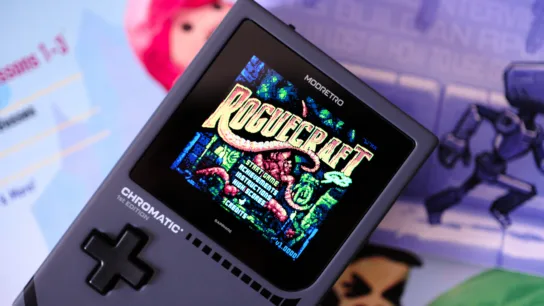
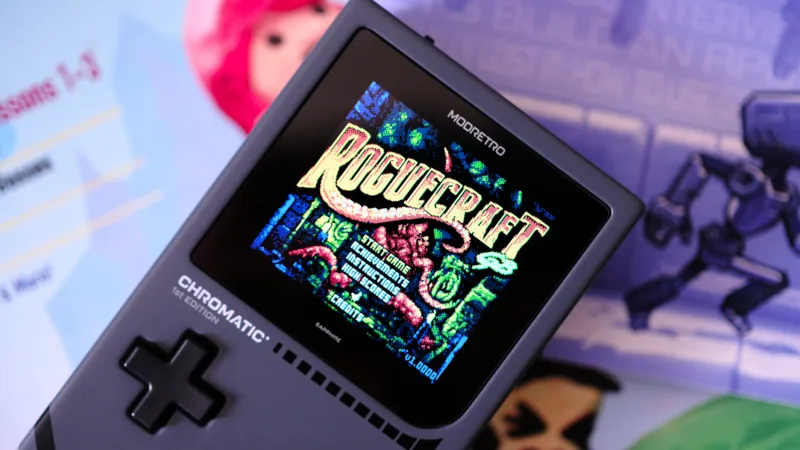
Of course, much like the Paper Pro before it, the Paper Pro Move is utilizing what reMarkable calls a Canvas color display, which is essentially a custom version of E Ink’s Gallery 3, and reMarkable is one of the very few using this tech. Unlike Kaleido 3 color E Ink screens, which have to use two layers (a black and white layer and a color layer) and combine them for a full image, Gallery 3 screens update all at once with one layer for all pixels, allowing for a much higher PPI (pixels per inch) at 264, not only offering more defined colors, but a clearer image compared to what Kaleido 3 can offer (though Kaleido is certainly catching up, as proven by the Boox Tab X C).

Manga cover showing colors on screen
Overall, reMarkable’s unique use of Gallery 3 screen tech has proven to deliver the best color experience E Ink currently offers for consumer e-readers, but there are caveats. Refresh times are a little slow, and each page turn requires a full screen refresh. For me, that’s my preferred experience, as I’m not a fan of ghosting like you see on Kaelildo 3 screens, but this might not be for everyone, as many competing devices can refresh their screens more quickly.
Now, when it comes to the lighting, many users are split on the results. Basically, reMarkable has tuned the frontlighting to be dim by default, even at its brightest, serving only to whiten the page, not to light it for reading in a dark room. Thankfully, reMarkable has heard the community’s complaints and added an optional toggle to brighten the frontlight, but the company warns that this can wash out the screen’s colors and drain your battery faster. Still, at least users can choose between the default dim lighting or something brighter, which is appreciated.
Taking notes is a pleasure, but reading ePubs is a chore
Video testing manga, comic books, PDFs, ePubs, and drawing
When it comes to reMarkable devices, many users can be split by the ethos of the company. While I’m a massive fan of purpose-built devices that excel at a single task, like taking notes, it often feels like reMarkable could do a lot more to improve its software, as it is incredibly bare-bones.
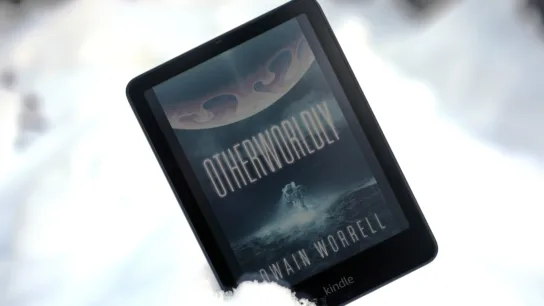
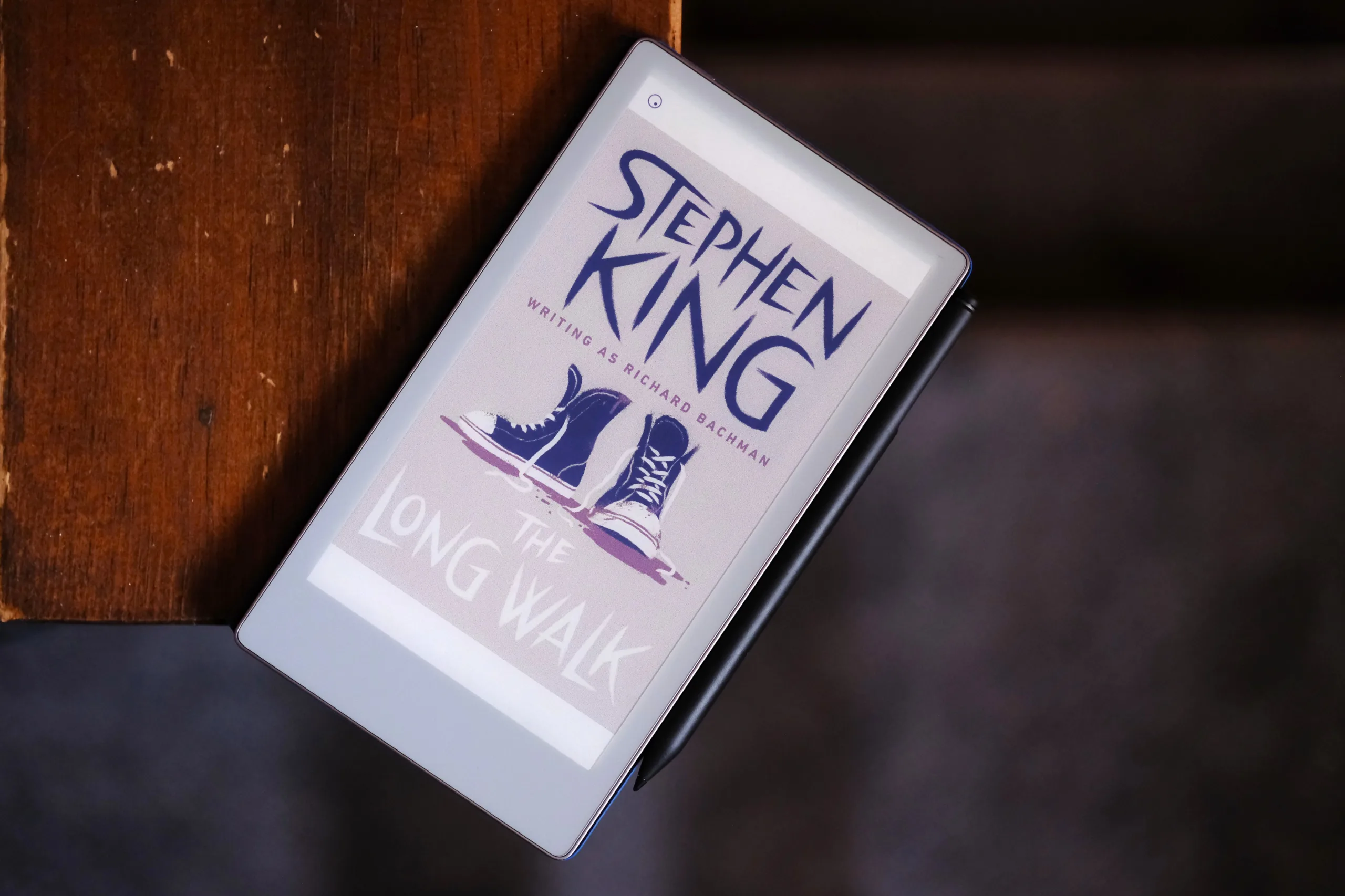
Reading on the device can feel incredibly lackluster, with ePubs suffering for it. In the case of the Move, there is at least an inch of dead space at the top and bottom of the screen when reading ePubs. Thanks to the fact that these files sync across devices with different screen ratios, only one of the three page margin choices in the settings allows ePubs to fit within the Move’s width. Basically, ePub support on the Move feels hacked together and doesn’t look all that great.
PDFs fare better than ePubs, but seeing that I love to read manga, this means I have to convert my CBZs to PDF, and Calibre isn’t very good at this, which left me hunting down a tool that could scale my manga better for such a small screen. This is where ACBR Comic Book Reader came in clutch, as it has a built-in convert tool to turn CBZs and CBRs into PDFs, which is precisely how I managed to get manga on the Move looking so good. While there is no way to reverse how pages turn, overall, the manga experience is fine if you’re willing to put in some work.

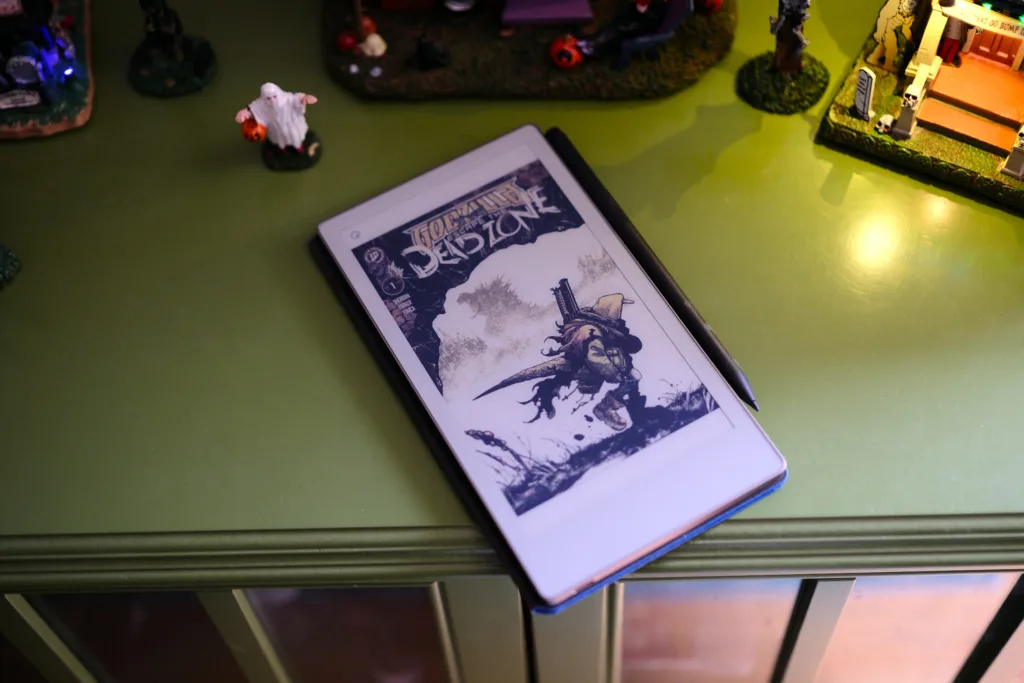
Manga on the left showing frontlight, comic book on the right
Thankfully, taking notes is where the Move really shines. The Marker Plus feels great on the textured screen, but it requires charging on the tablet’s side, as it is an active stylus that uses a custom USI 2.0 standard. This is also how you get enhanced functions like improved responsiveness. Of course, the tip of the stylus’s nib will wear with time, which is why reMarkable offers a few replacements in the box.
Basically, jotting down notes is quick and painless on the reMarkable Paper Pro Move, allowing you to create as many pages in your notes as you want. While it would be nice to see functionality like linking available in the notes so that your larger notebooks filled with pages can be easily navigated, I do hear a software update is coming later this year, so ideally, we’ll see some new features soon enough.
What’s also lovely about the note-taking is that it all syncs to the cloud and your other reMarkable devices if you pay the $3 monthly subscription. It’s cheap and worth it to me, though I know many users who aren’t too hyped about paying a subscription for their new expensive hardware. So the sub can be a pro and a con, depending on how you look at it.

Ready Player Two ePub with the device sitting in a tree, because why not
Ultimately, the user experience is a mixed bag, with highly polished note-taking features, which makes the unpolished ePub reading functionality stand out that much more. It seems the chief complaints about reMarkable’s hardware are that the e-reading experience isn’t up to snuff for the price paid, when competitors do e-reading better for cheaper. Then again, few do note-taking as well as reMarkable, so in my opinion, the Paper Pro Move is best for those focused on taking notes; this is where the user experience shines.
Minimal software keeps performance and battery in check
The reMarkable Paper Pro Move isn’t going to set any speed records; it refreshes slowly, using Gallery 3 tech for the screen, and navigation tends to be slow when the processor isn’t a powerhouse. Not annoyingly so, but noticeable if you’ve been using a Boox. Still, this slight slowness comes with better color representation, which I find to be an even trade.
Syncing is typically quick, which is nice to see when dropping files into the PC app, as they appear on the tablet’s screen within a minute. I find wake-up times when opening the case cover and removing the pen to be pretty responsive, though it would be nice to have a setting to prevent the screen from waking when removing the pen.
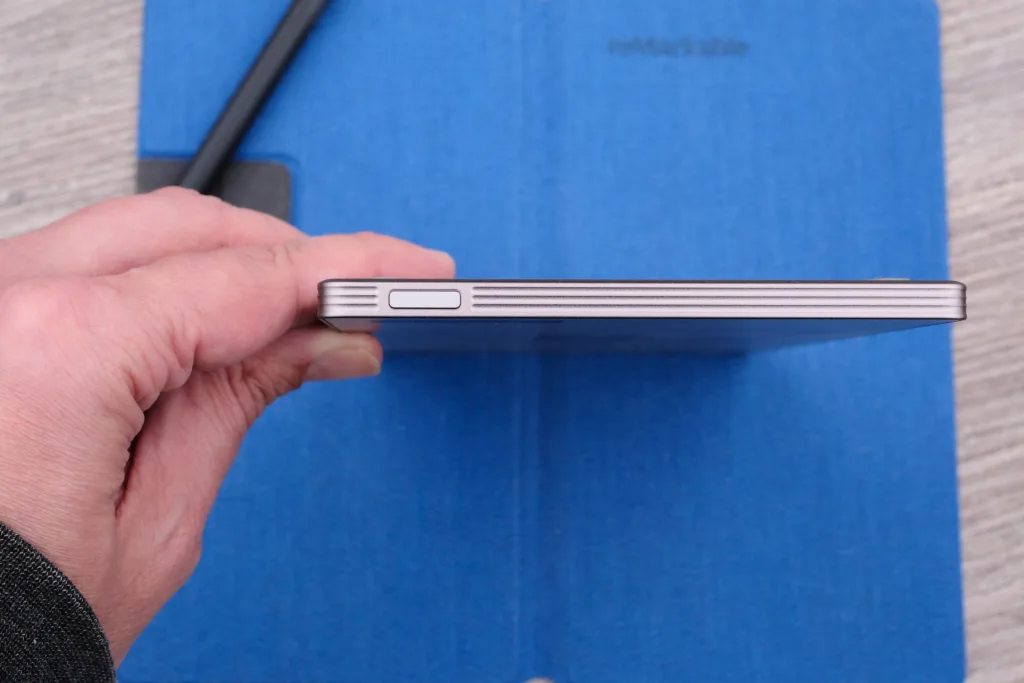

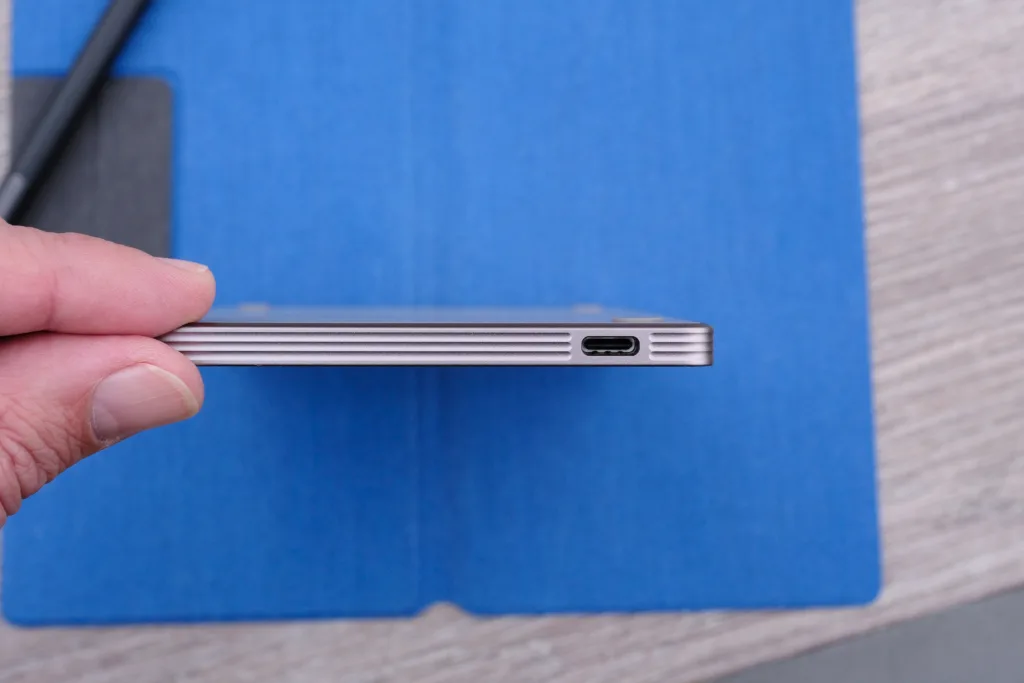
Power button, rear rubber feet, and the USB-C port
Overall, I find the performance acceptable for reading, taking notes, and syncing, and that’s likely thanks to the custom bare-bones firmware that doesn’t bog down the 1.7 GHz Dual Core Cortex-A55 chip and 2 GB of RAM. The Move isn’t pushing top specs by any stretch, but reMarkable has done a swell job tuning things so that performance isn’t a concern.
Now, when it comes to the battery, there are two things to consider. The first is that the standby time is pretty great. Unlike Android e-readers that drain a little too much when idle, since reMarkable is using a custom firmware, its device offers faster wake times and less battery drain when the screen is off.
However, the second thing to consider is battery life: if you crank the backlight and spend some time drawing, not only does the device heat up, but the battery drains quickly. So, how you plan to use the Move is key. If you’re simply going to use it as a digital note-pad for quick notes and sketches, you’ll be fine for more than a couple of days, but if you are looking to pick up a device you use to create art for hours on end, you’ll get two hours at best, with some heat warnings that drag down the screen’s refresh rate. I’ve heard there is a beta that helps with the warning and excessive heat, so at least reMarkable is aware and working on things.
The optional Folio and Stylus can be pricey, but they exude quality
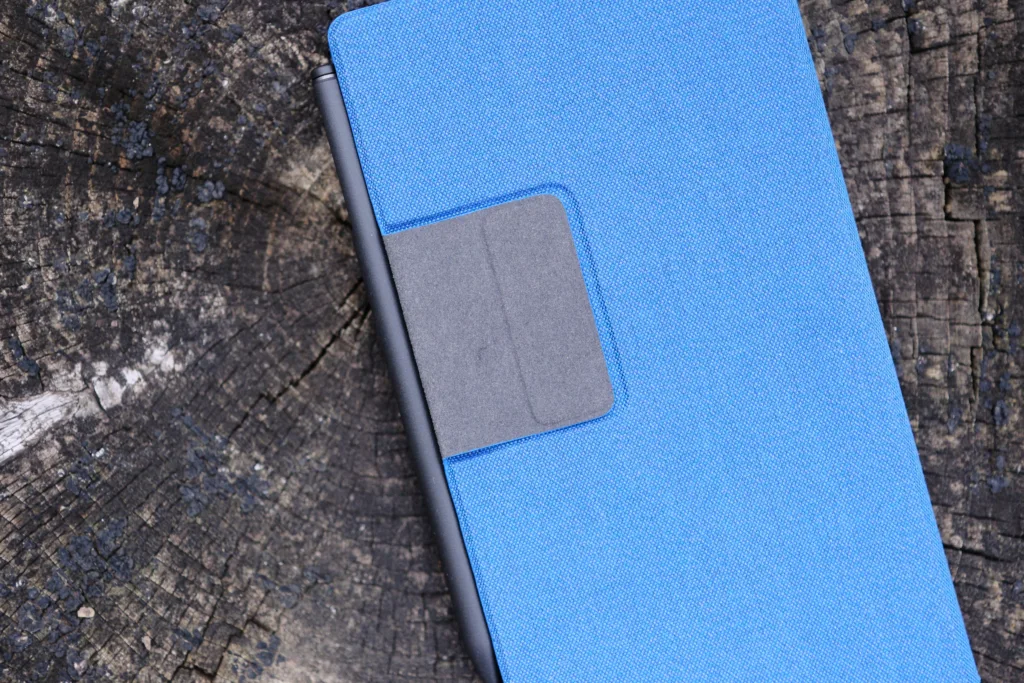
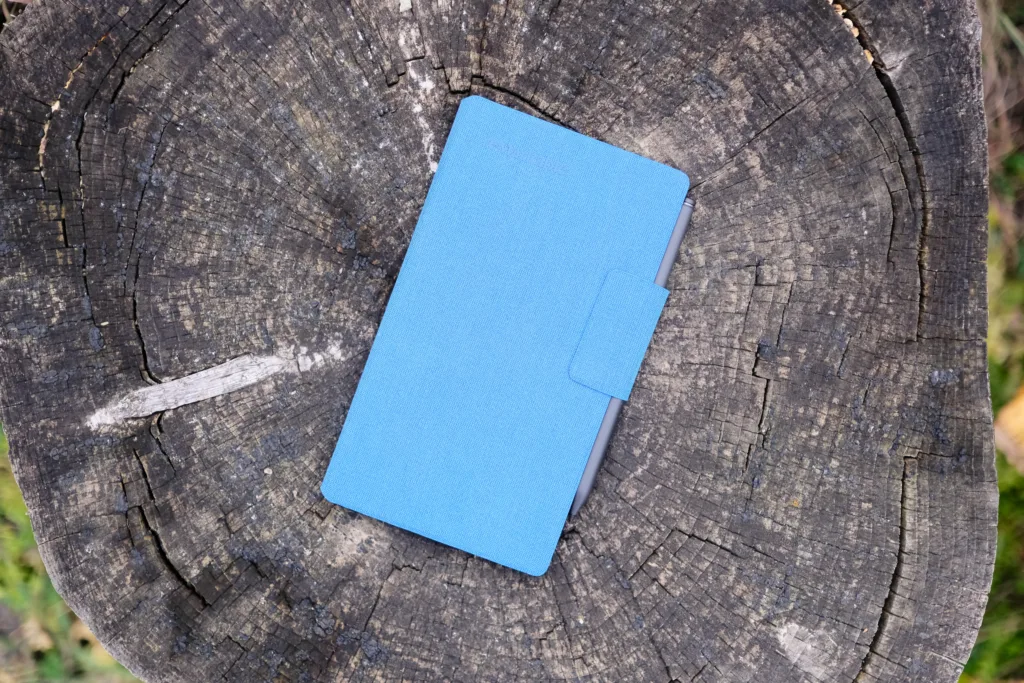
Folio rear pen flap and front of case with flap holding pen
I have to admit that I am in love with the Cobalt Mosaic Weave Folio reMarkable sent with the testing unit. Not only is there a slick flap you can fold over to magnetically secure the pen, but it also folds back into a recess in the rear of the case, making the flap seamless when holding the tablet. Plus, the whole case is magnetically attached to the Move, and the Move is easily removed, ensuring you can read and take notes how you see fit, with or without the case attached. That Cobalt color is also pretty striking, but at $99, it better be, right? You can also choose from two more colors for the Mosaic Weave case, plus a leather case that retails for $149 in black or brown, or a cheaper polymer case that clocks in at $70.
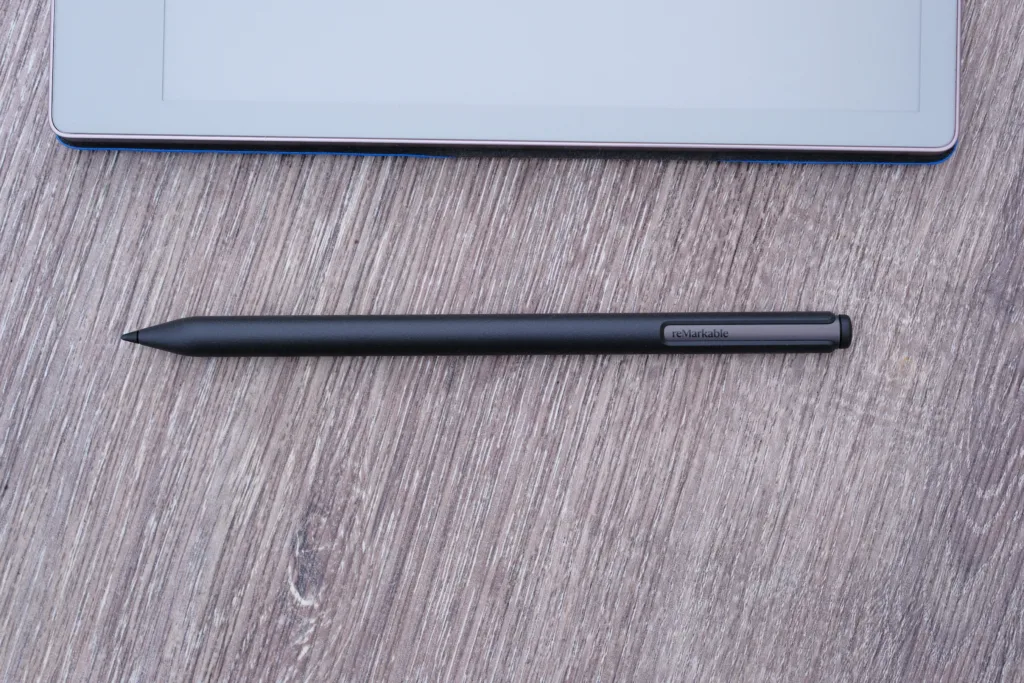
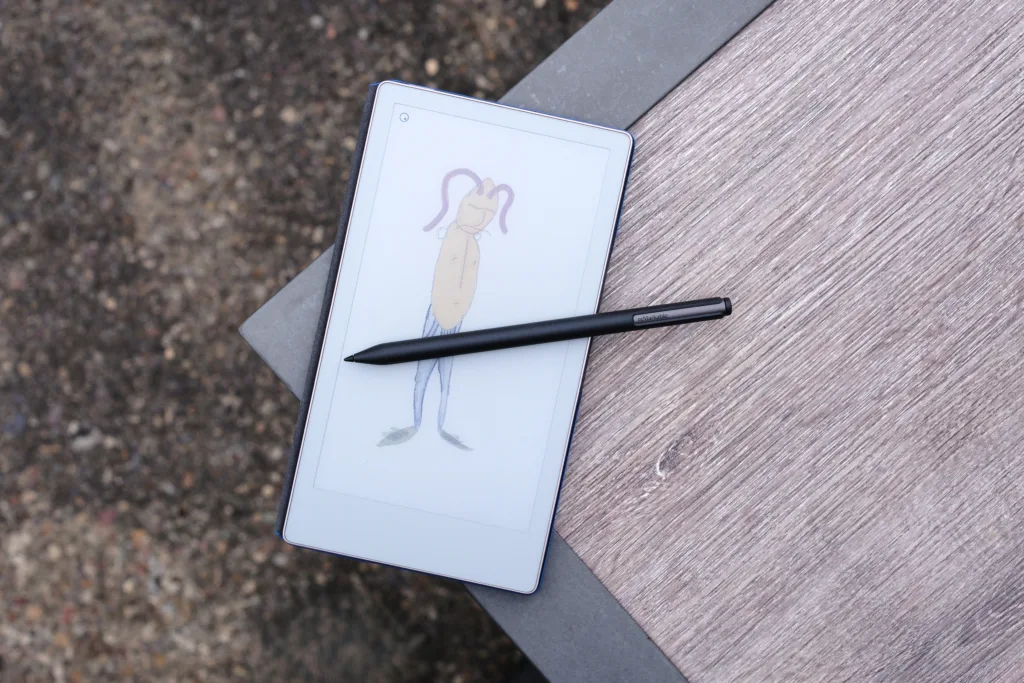
While I can’t say any of these cases are cheap, they are well-made, and having a selection to pick from is nice. You also get a selection when it comes to the stylus: each device comes with the regular Marker, and there is an upcharge of $50 to swap to the Marker Plus. The main difference is that the Marker Plus comes with a digital eraser.
Marker Plus, and a little doodle
For me, the Marker Plus is worth the upcharge, as the eraser comes in handy more than you think, especially if you enjoy sketching. Rather than using the back button in the notes app, you can just turn the stylus around and use it like a pencil, erasing whatever you wish, which feels pretty natural as someone who has spent a lot of time sketching with mechanical pencils in an earlier life.
The reMarkable Paper Pro Move is best for heavy note-takers
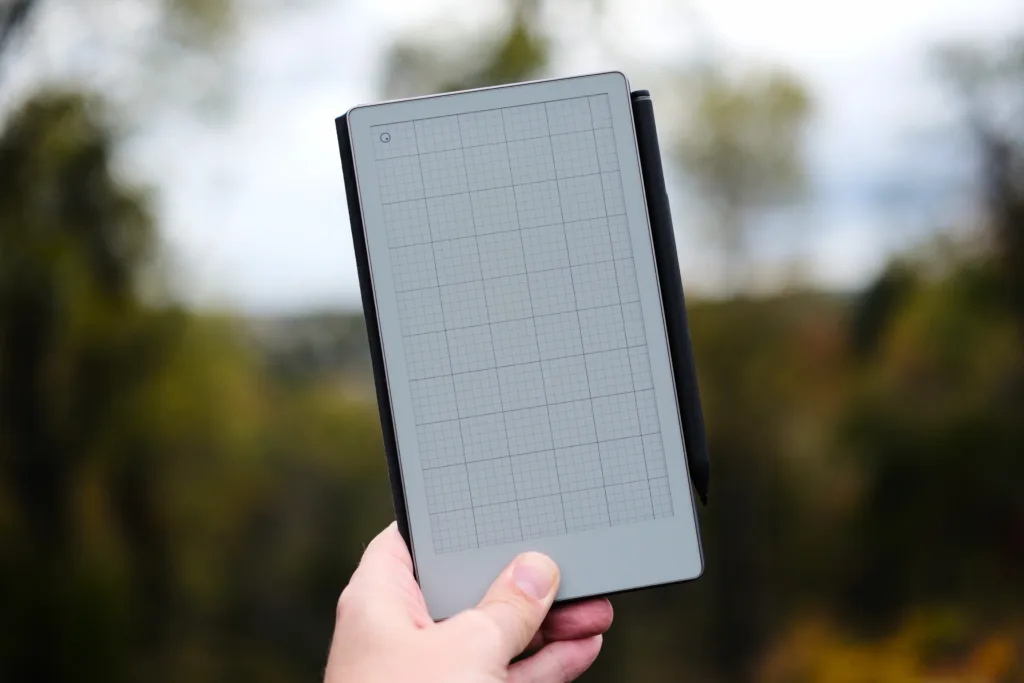
One of the many templates you can use on your reMarkable
First and foremost, the reMarkable Paper Pro Move is clearly designed to be used as a killer note-taking device, and as just that, it delivers, in spades. But if you are looking for an all-in-one portable E Ink tablet that also excels at e-reading, well, you may feel a little let down. Sure, you can read ePubs, but the formatting is incredibly limited, and the wasted screen space is pretty questionable from a design standpoint. While it’s understandable that reMarkable is limited by syncing documents across different screen ratios, there should be a more elegant way to ensure ePubs fit the tall 9:16 screen without overlapping the screen edges.
If you’re looking for a portable digital note-taking device that is a perfect replacement for a Moleskine, then you are in luck; the Paper Pro Move delivers an exceptional digital note-taking experience, but if you’re looking for an all-in-one E Ink device that can chew through e-books, you may come away a little disappointed with the limited software. Still, in a pinch, you can read an ePub or PDF, which can be handy, ensuring the Move is just versatile enough to get the job done.
Pros
- Great size for taking notes
- Hardware quality is top-tier
- Excellent color representation
Cons
- Lackluster e-reading software
- Expensive peripherals
- Monthly subscription for syncing
| Company | Model | Price |
| reMarkable | Paper Pro Move | $450 |
The reMarkable Paper Pro Move is the best option on the market for a pocketable digital notepad, neither too big nor too small, though the software can at times feel limiting when it comes to e-reading. As long as you know what you’re getting into, there’s a lot to like about the device.