 Daniel Allen
 Given all of the amazing handhelds available out there at just about every price point, 2026 could be the year when retro gaming blows up in the mainstream. Between screen sizes, aspect ratios, CPUs, and RAM, trying to find the perfect hardware can be a struggle. But behind all of this hardware, there’s one bit of software that’s common to all of them: RetroArch. Despite how powerful and ubiquitous RetroArch is, one thing it is not is intuitive. So, if you’ve got your hands on a new handheld or you’re diving into retro gaming on your computer, let us give you the lowdown on what RetroArch is and how to get started with the emulator frontend.
What is RetroArch?
RetroArch, at its core, is frontend software that serves as an interface to launch other software, in this case, console emulators. In the parlance of RetroArch, these emulators are called “cores,” and rather than being stand-alone programs, are more like plug-ins purpose-built for playing games through RetroArch.
How to play a game with RetroArch
If you’re using a Linux-based handheld that came pre-installed with RetroArch, your experience might be a bit different. Many of these handhelds ship with custom builds of RetroArch that are preloaded with cores and have some of the features nerfed. You can usually get around this by installing third-party firmware. This guide covers the use of clean RetroArch installs.
Now that you’re up to speed (and assuming you’ve got RetroArch installed), we’re ready to play a game. When it comes to finding a ROM (game file), you’re entirely on your own. If you purchased a handheld, there’s an even chance that it came bundled with a bunch of games. If it didn’t, get to Googling. As for emulators/cores, RetroArch makes a huge library available to download for free. Let’s start with downloading a core for the Sega Genesis.
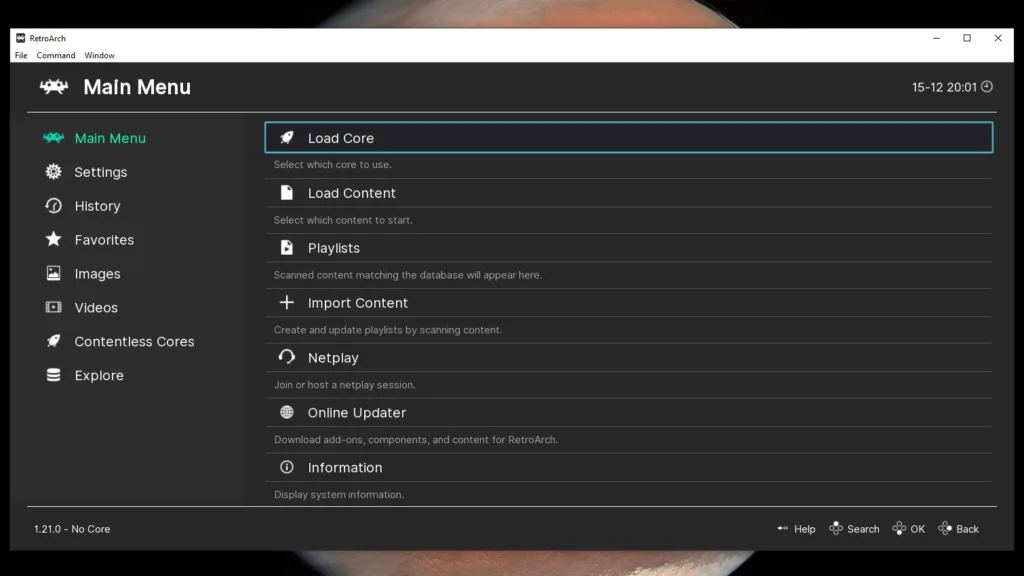
- From the RetroArch Main Menu, select Load Core.
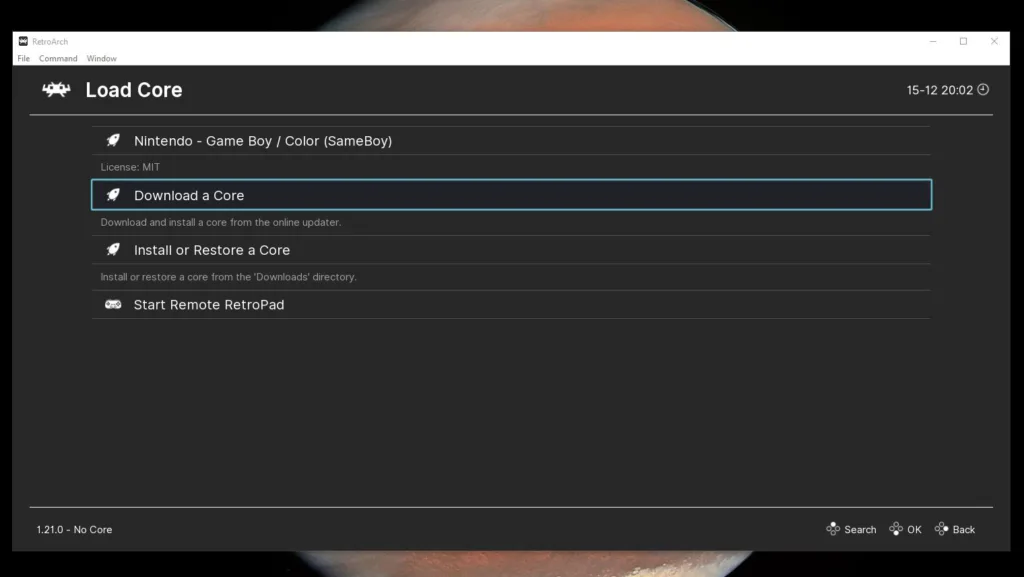
- In the Load Core menu, select Download a Core.
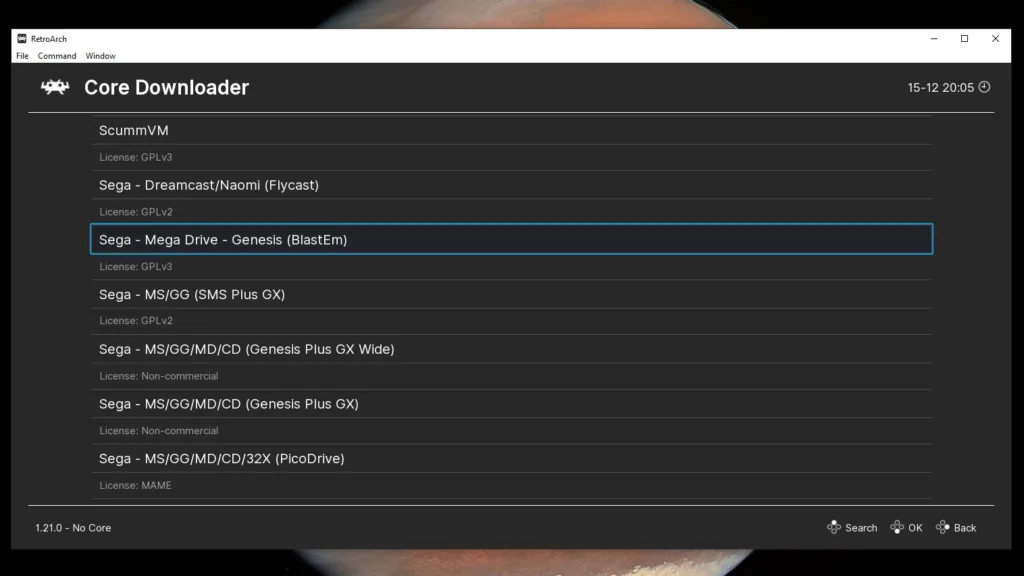
- After RetroArch fetches a list of its available cores, you will see a long list of cores. Scroll down and select the Sega – Mega Drive – Genesis (BlastEm) core. Installed cores will have a # to the right of their name.
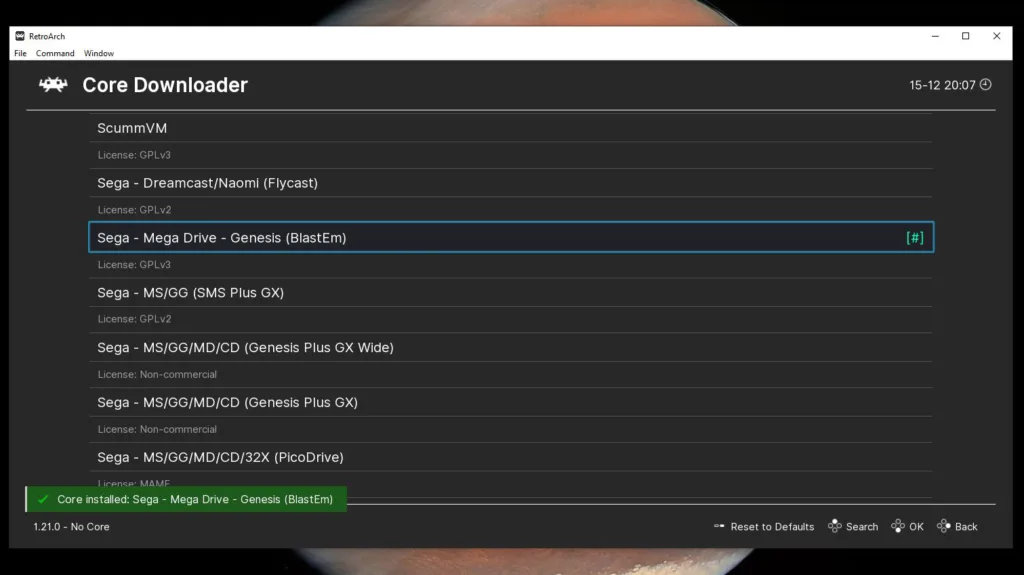
With our core installed, we can load up a game.
- From the RetroArch Main Menu, select Load Content.
- Navigate to the directory in which your ROM is saved and select your ROM.
- If your ROM is saved as a ZIP file, select Load Archive.
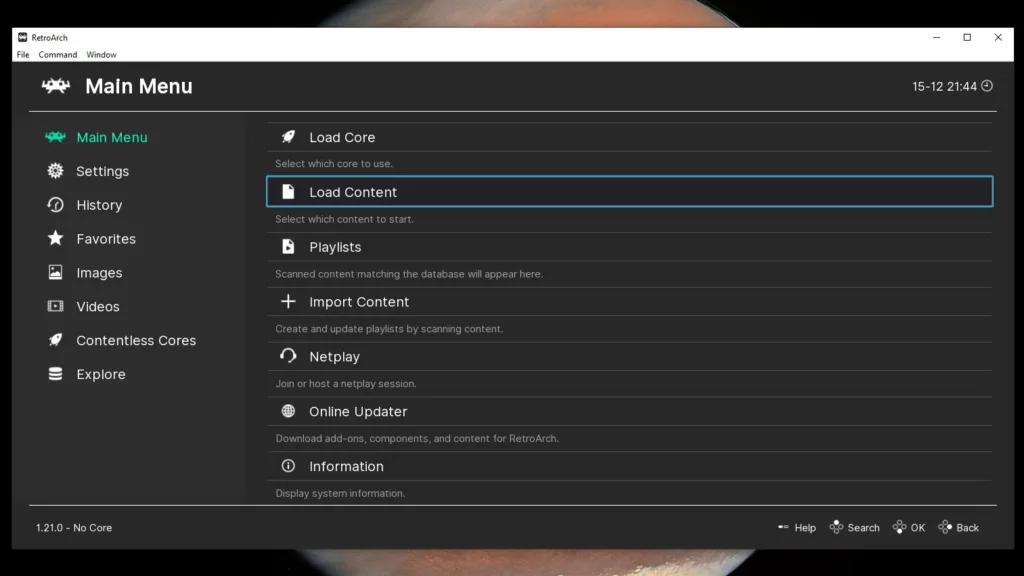
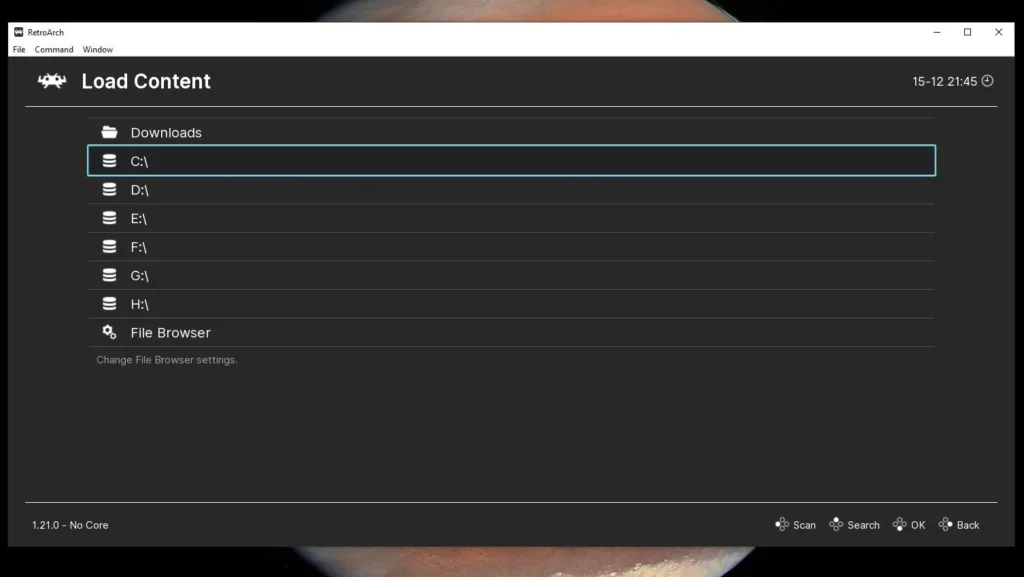
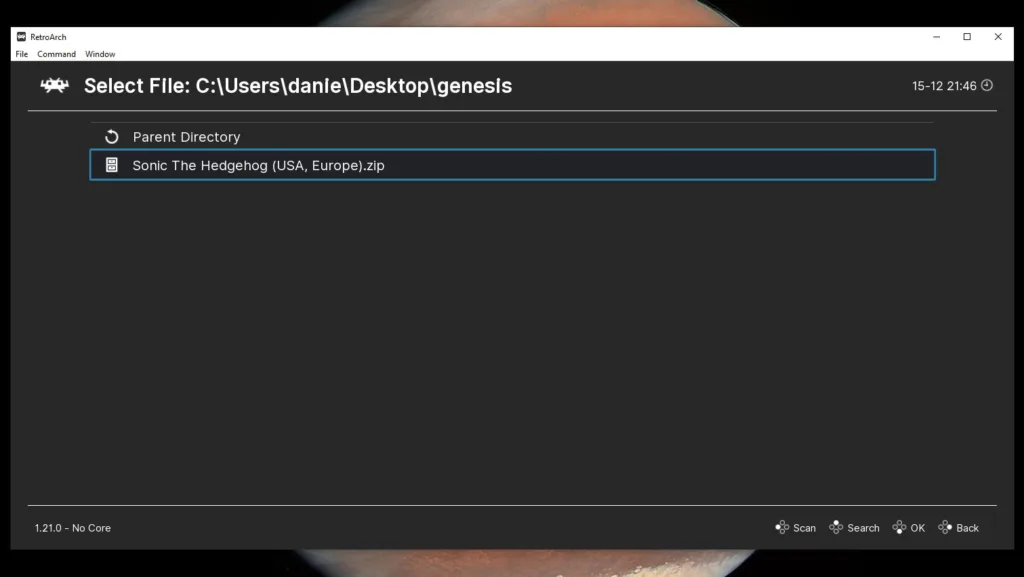
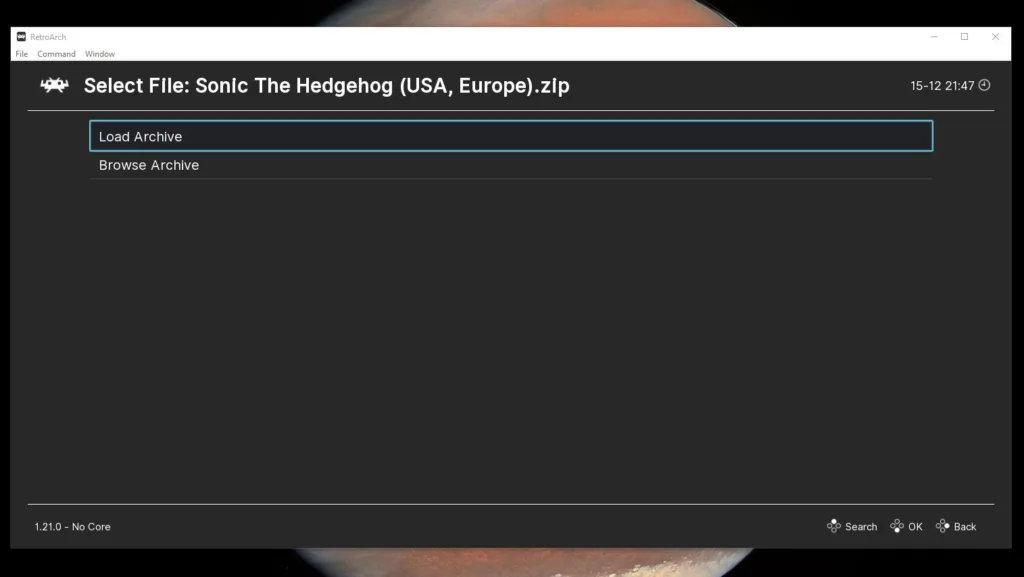
Bob’s your uncle. Take note that you can do these steps in any order; that is, you can select your game first and choose your core second.
How to configure your gamepad in RetroArch
Many gamepads RetroArch can recognize and configure automatically, but if you’re not so lucky, you’ll have to delve into the settings and set up your controller manually.
- Navigate to the Settings menu and select Input.
- Next, click or tap RetroPad Binds.
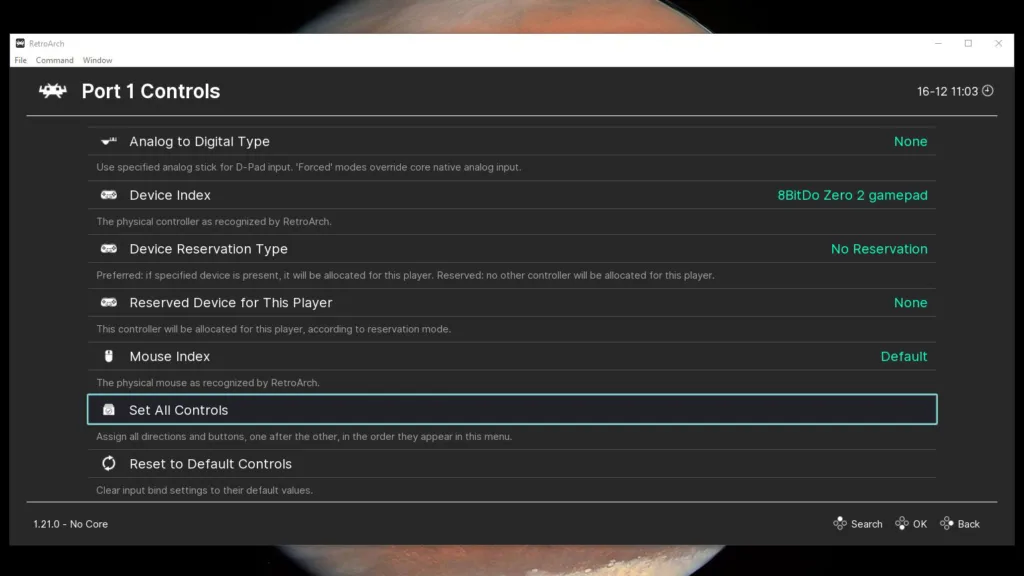
- Select Port 1 Controls.
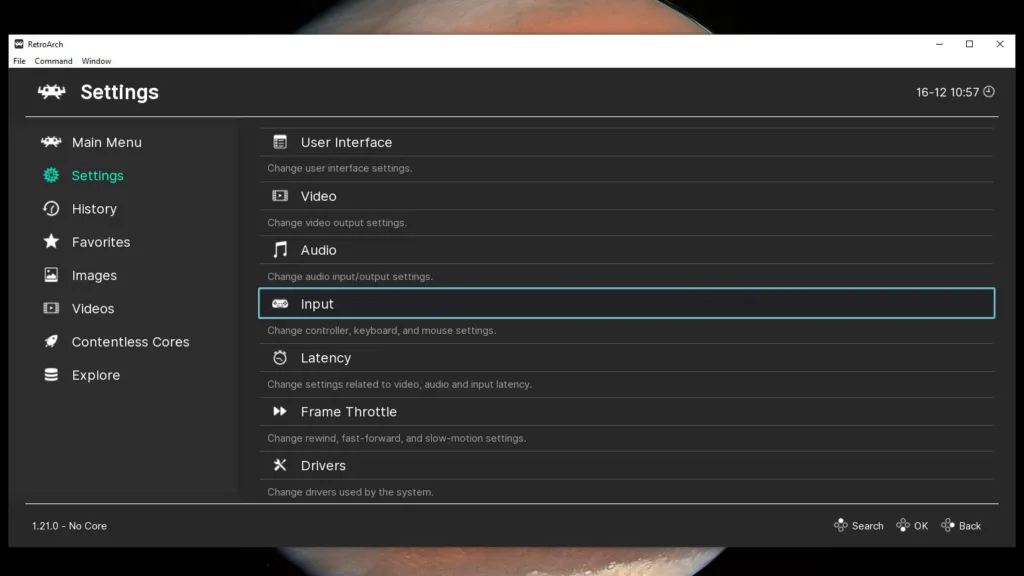
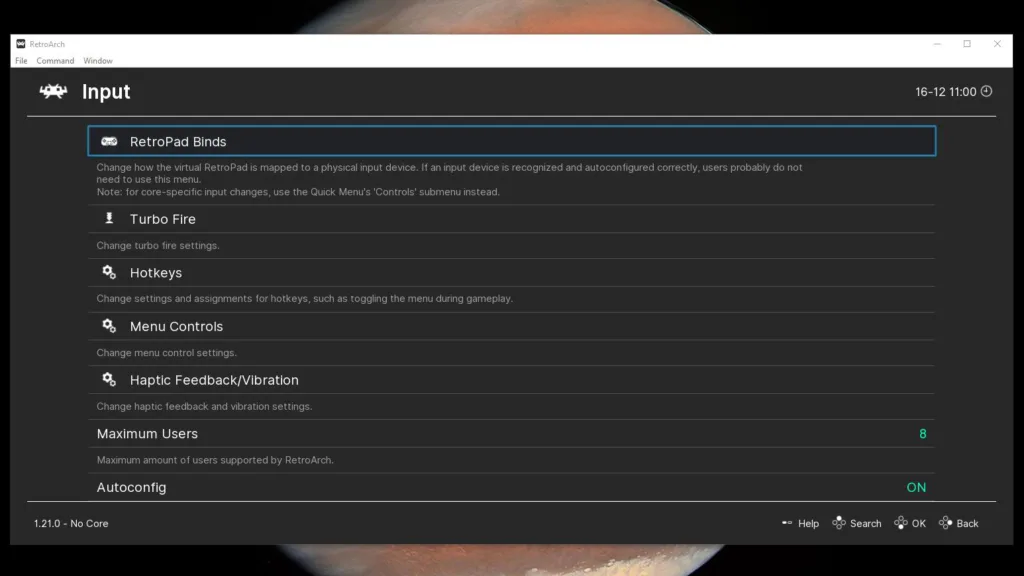
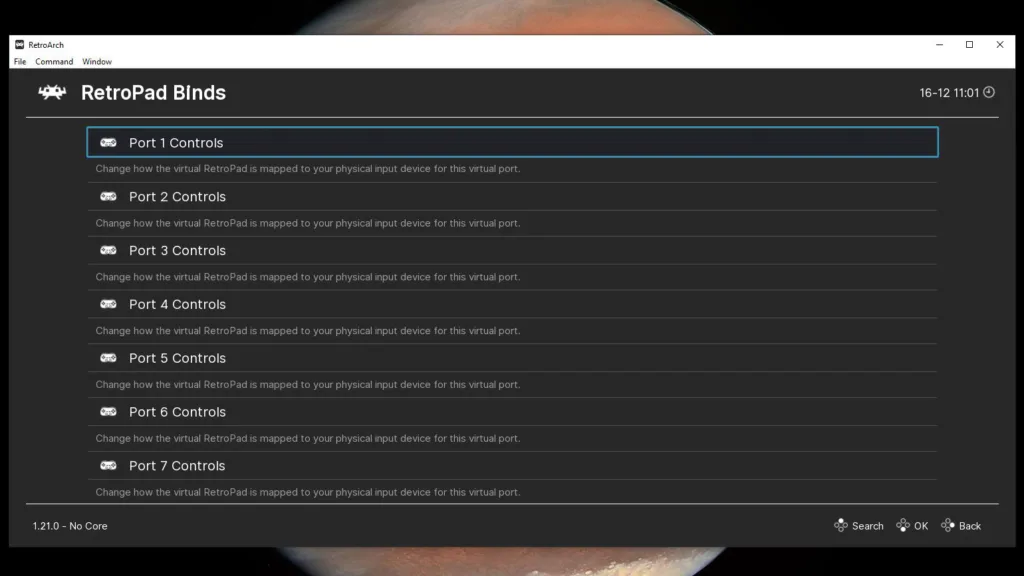
From here, you have two options: You can either select Set All Controls and allow RetroArch to manually walk you through every possible input, or you can assign them individually. I prefer the second route because I’m meticulous like that.
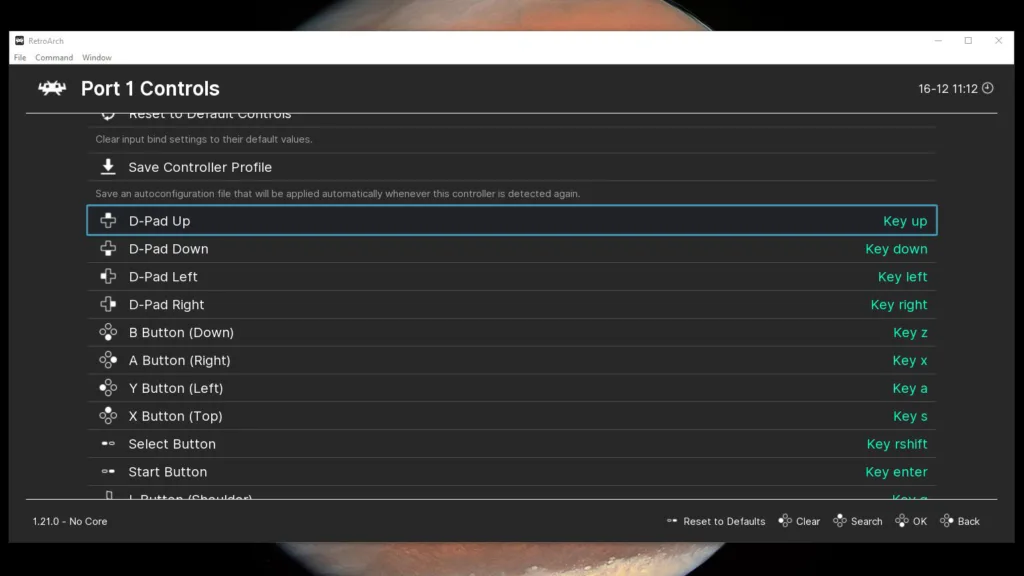
- Scroll down until you see the inputs, then select the first one, D-Pad Up.
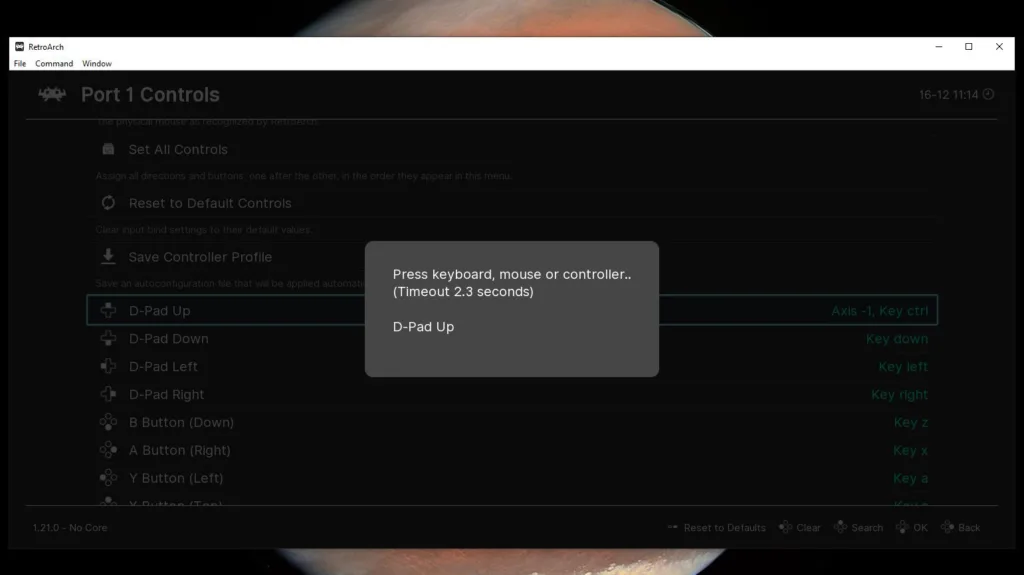
- You’ll have a few seconds to press up on your controller to assign it.
- Repeat this process for all the buttons on your controller.
In addition to being able to use your gamepad to play your games, you can also use it to navigate the RetroArch menu.
Set a default directory in RetroArch
If you’re going to tinker with retro gaming and emulation, it would serve you well to get comfortable with the file system on your chosen device. In particular, you’re going to want some sort of scheme to organize your ROMs. We’re not here to tell you how to do your business, but one of the easiest quality-of-life changes you can make is to set your default start directory (the directory that opens when you select Load Content) to the root directory of your ROM collection. This will save you the hassle of traversing your file system when you just want to load up a quick game.
- From the Settings menu, scroll to the bottom and select Directory.
- Select Start Directory.
- Find the root directory for your ROMs and select it.
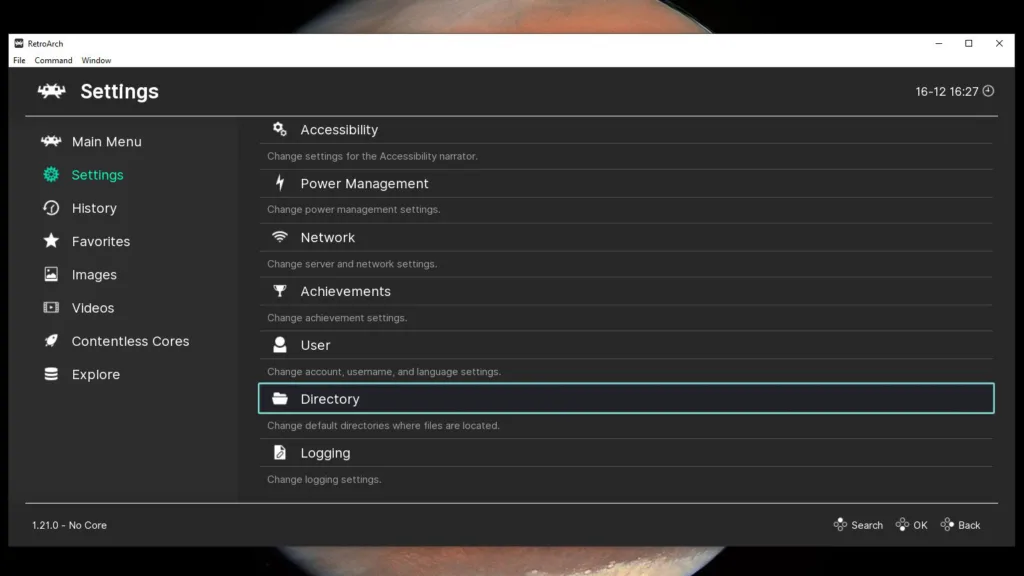
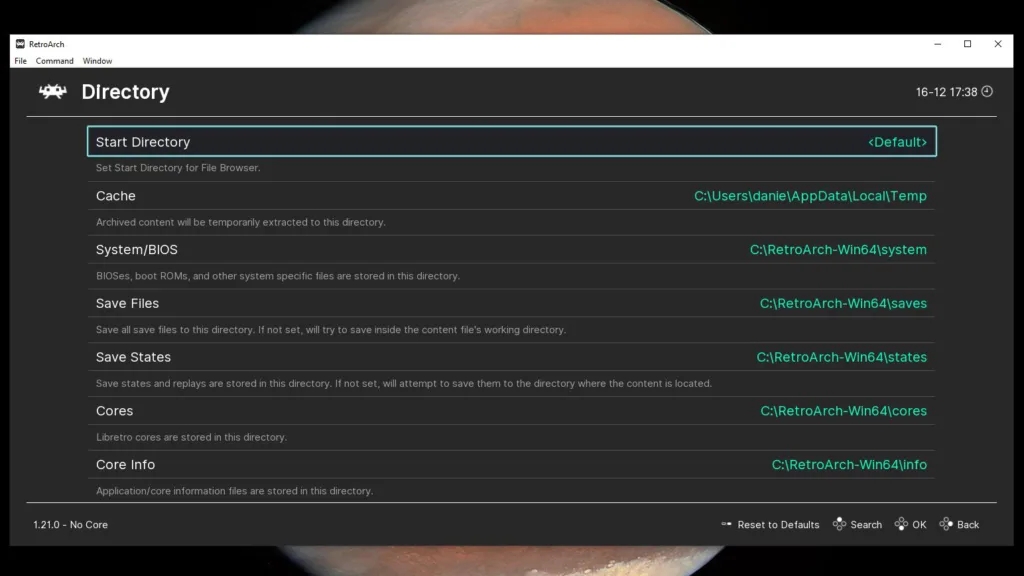
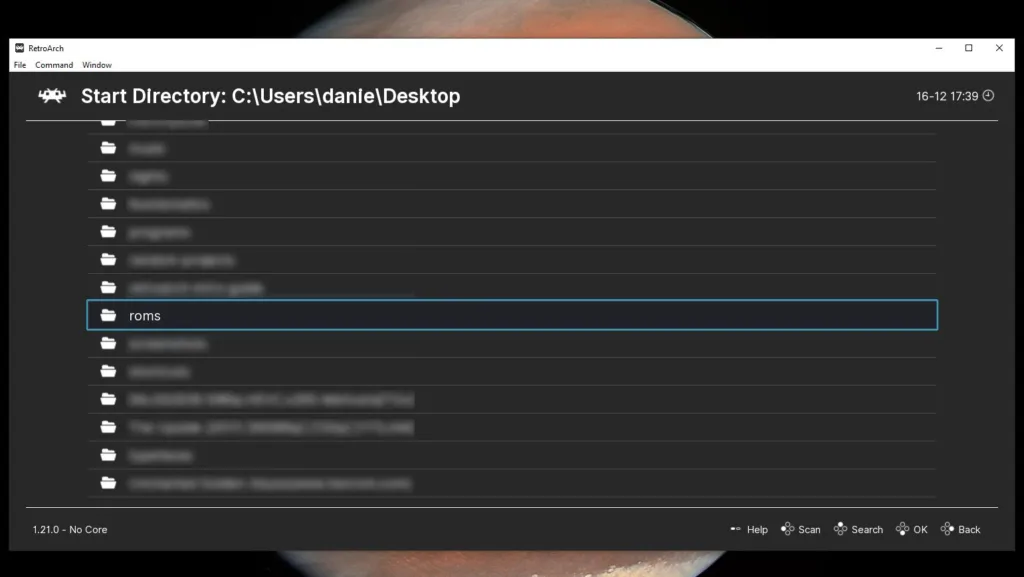
From now on, when you select Load Content from the Main Menu, it will automatically start you in this directory. This is particularly helpful on Android when you have to navigate out of local storage and to an SD card to access your content.
Scratching the surface of RetroArch
With the knowledge you now wield, you’re all set to jump into the best games on offer from the past 40 years. Keep in mind there’s a lot more to RetroArch than what we’ve covered here, but this is the bare minimum you need to jump into retro gaming.